How do I find my network IP address, netmask, and gateway info?
I'm trying to make my IP address static as I hear it fixes slow browsing issues.
When I click on connection information under the networking menu of the gray taskbar, it tells me about the IP address, subnet mask, and DNS, but nothing about the gateway.
I would like to know if there's a terminal command to find the information.
17 Answers
I have this command as an alias for "ipconfig" (up to 14.04):
nmcli dev list iface eth0 | grep IP4An example listing is:
IP4-SETTINGS.ADDRESS: 192.168.1.110
IP4-SETTINGS.PREFIX: 24 (255.255.255.0)
IP4-SETTINGS.GATEWAY: 192.168.1.1
IP4-DNS1.DNS: 208.67.222.222
IP4-DNS2.DNS: 208.67.220.220
If eth0 doesn't work, you may need to use eth1, eth2, ... depending on your configuration.
EDIT: 2/8/16
Note that this only works in versions before v15.04 (or possibly before v14.10; I have v14.04). For newer versions, you can use this:
nmcli dev show eth0You can use ifconfig, it will show your inet address (IP) and mask.
For the gateway, issue the ip route command and take note of the default route.
Hope this can help you.
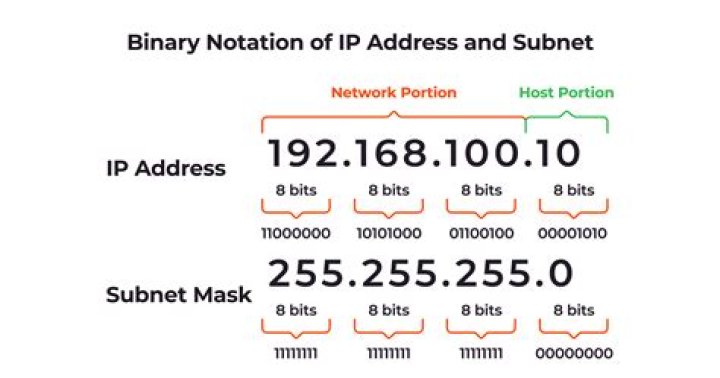
1This website explains how the network and broadcast addresses can be calculated via a netmask and a computer's ip address. To simplify that article: network is the lowest possible address in the range of ip addresses left over from the netmask. broadcast is the highest numbered ip address in that range. The "range of ip addresses left over from the netmask" is known as the local network.
"The network" typically means everyone above you, including the Internet. To get to "the network", the network address is used. In reality, most people call "the network" anything with ethernet cables that can talk to each other.
Example: your ISP gives you info to type into a wireless router: a static IP address of 99.1.81.209 and your netmask is 255.255.255.224. Now you're wanting to set up an ubuntu firewall and need to set up your public interface:
Calculate network IP address:
255.255.255.224 -> last octet = E0 99. 1. 81.209 -> last octet = D1
Logical AND the mask and your ip:
E0 & D1 = C0 = 192
--> network = 99.1.81.192
Calculate broadcast address:
255.255.255.224 : E0 -> there are 1F = 31,
-> broadcast = 99.1.81.192 + .31 = 99.1.81.223
The other way...
Calculate broadcast address:
255.255.255.224 -> last octet = E0 99. 1. 81.209 -> last octet = D1
Hosts' IPs = 1F
Logical OR the hosts ips with your ip:
1F | D6 = DF = 223
--> broadcast = 99.1.81.223
Often, you'll see networks described with a /. Here's this network:
255.255.255.224 is the netmask, add up the "1" bits: 8 + 8 + 8 + 3 = 27
so "this network" gets /27 notation
and can be described as 99.1.81.192/27
In versions before 15.04 there used to exist nm-tool utility.
From man nm-tool:
NAME nm-tool - utility to report NetworkManager state and devices
SYNOPSIS nm-tool
DESCRIPTION The nm-tool utility provides information about NetworkManager, device, and wireless networks.
This small utility would interface nicely with the Network Manager and produce a report with appropriate information on each line, which was quite simple to parse with text processing utilities. Sample output:
$ nm-tool | sed -ne '/^ *IPv4/,/^$/p' IPv4 Settings: Address: 192.168.42.178 Prefix: 24 (255.255.255.0) Gateway: 192.168.42.129Rinzwind's answer on the related question has cited the changelog for Network Manager package, which explains that it has been dropped upstream and superseded by nmcli. It should be noted, however, that nmcli before and after 15.04 differs with several command-line arguments. Here's alternative to the above:
$ nmcli dev show | grep 'IP4\.ADDRESS\|IP4.GATEWAY'
IP4.ADDRESS[1]: 192.168.0.101/24
IP4.GATEWAY: 192.168.0.1
IP4.ADDRESS[1]: 127.0.0.1/8
IP4.GATEWAY: --
With nmcli information is shown in accordance with each interface, i.e. there's set of lines for one interface, then separated by a blank line another set of lines and so forth.
Another alternative that one can use would be ip command which is preferred nowadays to ifconfig. According to pilona's and Gilles's answers on Difference between 'ifconfig' and 'ip' commands, Linux kernel and networking features have advanced forward but ifconfig and the package to which it belongs haven't evolved in a long time, and that's why we have ip utilities. For getting the addressing information on specific interfaces ip -o -4 addr can be used and ip route can be used for getting routing/gateway information.
nm-tool will also do the job.
$ nm-tool
NetworkManager Tool
State: connected (global)
.... IPv4 Settings: Address: 192.168.1.110 Prefix: 24 (255.255.255.0) Gateway: 192.168.1.1 DNS: 208.67.222.222 DNS: 208.67.220.220Quick update to this old question. With newer versions of Linux you probably have the ip command now which replaces ifconfig.
ip -o -f inet addr show | awk '/scope global/ {print $2,$4,$6}'Will show something like this:
$ ip -o -f inet addr show | awk '/scope global/ {print $2,$4,$6}'
eth0 192.168.1.169/24 192.168.1.255
wlan0 192.168.1.115/24 192.168.1.255
or something like this on the newest versions of Linux:
$ ip -o -f inet addr show | awk '/scope global/ {print $2,$4,$6}'
enp0s25 192.168.1.191/24 192.168.1.255
The 3 return values are:
- The network interface name
- The IP address for that interface followed by the subnet mask (
/24) - The broadcast IP address for that interfaces subnet
I use the following to get an overview of my network configuration:
ip addr , this show you an overview of your NIC settingsroute -n , it gives you a nice overview of where your traffic is going.cat /etc/resolv.conf for dns infocat /etc/hosts for preloaded hostnames
Changing to a static IP address will not affect your browsing speed though. The only difference between static and dynamic is that on static, you always have the same IP address. With dynamic, you will be assigned a "random" IP address by your DHCP server when you connect to the network. Once you have been assigned an IP address, it will behave exactly the same way as if you had assigned yourself a static IP addresss.


