How do I Factory Reset a BQ Aquaris M10 tablet?
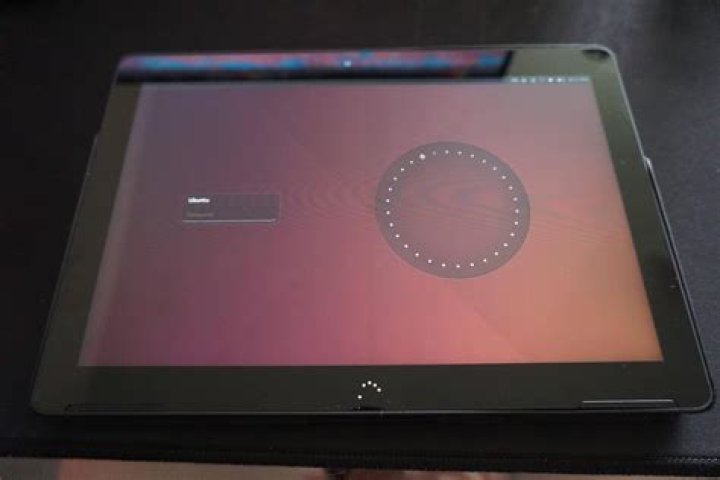
So, my father's friend lent me a BQ Aquaris M10 Ubuntu tablet, because he forgot his numerical password for it a while back, and he was wondering if I could either figure out the password myself, or factory reset it. Well, I haven't been able to figure out the password, so I've looked into factory resetting it. If I boot the tablet into recovery mode by holding the power button + volume up, I get to the recovery mode screen, but as pictured, there is no option to factory reset. Other sites have said to hold power + Vol up + vol down, but that doesn't seem to do anything. Any idea how I can reset this?
Recovery Mode Screen:
Ubuntu Password Screen:
2 Answers
There's a timing play to successfully factory reset the BQ Aquaris M10 tablet
Start with the tablet powered off.
Press the power and volume up keys simultaneously
Release both keys immediately when the BQ logo appears.
Use the volume buttons to cursor down to wipe data/factory reset then press the power button to select it
Select Yes--delete all user data and press the Power button once
You'll now have the screen shown here, simply cursor to reboot system now with the volume buttons and select it with the power button. This should bring you back to factory condition.
If for some reason this doesn't work for you you should likely reflash the firmware.
Sources:
Problem flashing Ubuntu Touch Firmware on Aquaris M10 (frieza)
1In my case it required pressing "Turn off" button and "Volume Down", then in a completely different menu I've selected "clear eMMCs" - something like that - and it allowed me to reset the tablet to factory defaults. And after that I've used ubports to upgrade the tablet and have my app menu w/o the disabled Ubuntu One.


