How do I display the number of files in a folder in windows explorer?
I want to display the count of files when the Details view is active. I've tried looking through the list of details that I can add, but have had no luck.
36 Answers
Open Windows explorer, go to > Organize > Layout > tick Details Pane
Now you will see at the bottom of the window the number of items when you have selected a folder, and additional properties when you select a file like a jpg file.
Items includes everything in the folder including other folders. If you select some of the files in a folder it will give you that selection count.
.
I think what we're looking for is a display of a folder's properties in the details pane when you click on it, as opposed to when you actually open the folder. And that doesn't seem to exist. There used to be add-ons that would show the folder size in a column...
1If you want to see the number of files or the size of all the items in all folders as a column then I would recommend the program xplorer2. It's a Windows explorer replacement which has a lot of extra features. When you're in a folder you can press CTRL-D and it will go through and calculate the sizes of the contents of each folder and you can sort the files and folders together by size. Also you can turn on the column called Contents and it will show the number of files inside each folder.
1Oye. What he's looking for is the Status Bar. Click View > Status Bar. The folder now displays the number of items in the folder at the bottom. JUST LIKE IT USED TO, MICROSOFT!
I had a similar problem (the same exactly ? unsure) in windows 8.1 :
here is the solution for my problem :
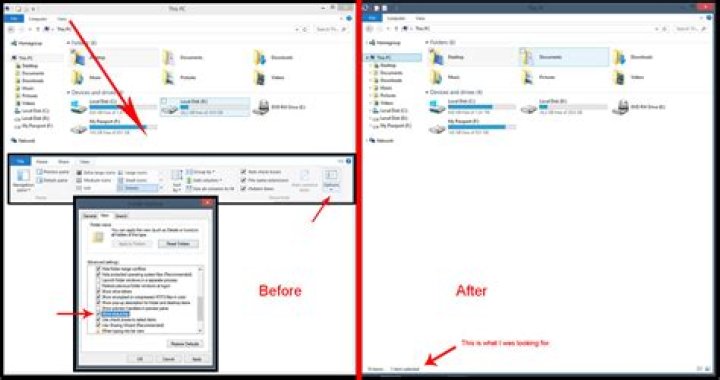
In windows explorer, in the top menu bar click "View" then hit the "Options" button on the right. In the window that pops up go to the "View" tab and scroll down the "Advanced Setting" menu until you find "show status bar". Tick the case and click Ok.
In the posted screenshot, I read "2 Items" at the bottom of the window. I use this feature often and found it missing when I received an upgraded computer.
Here is the solution if you are experiencing the same issue:
VIEW>STATUS BAR