How do I create an Outlook rule for moving all messages flagged on a particular day?
How do I create an Outlook rule for moving all messages flagged for follow up on a particular day?
For example: if a message is flagged for follow up today, I can run this rule and move it to the inbox.
Bonus: How can I have this rule run automatically?
5 Answers
Outlook rules can only run automatically when receiving an email, and when sending. It is also limited somehwat to which fields it can read in order to make a decision. It is possible to create a rule that picks all mails with a Follow up-flag, but it does not seem possible to separate them depending on which date they have.
There is another way, however. You may not need to move the email around. You can create Search Folders that contain all emails with a specific Due date. You could for example create the folders "Due today", "Due tomorrow", "Due next week". If that is what you would like to do, try this:
Opt to create a custom search folder, and then click Criterias. Choose Advanced tab, and pick the Field "Due Date" from the Task sub-menu. You can then select conditions, such as relative dates ("Tomorrow") or absolute dates. Finally, name your Search folder appropriately.
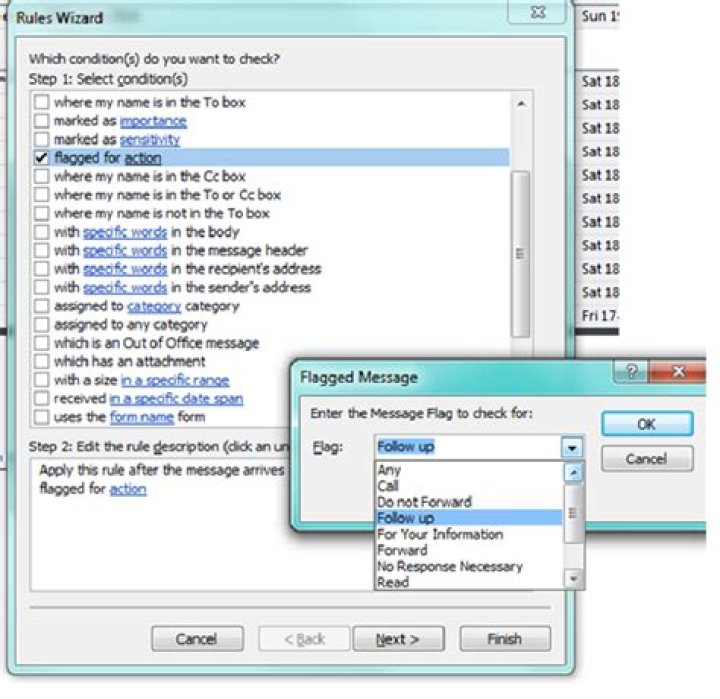
You can do it with rules, also. If you go to Advanced options.
Rules -> Create Rule - > Advanced options and then you select from the list the following options:
flagged for action - Select Follow up from Drop down list. Ta-Da!!!
Find the image link:
You can use Auto-Mate Add-in for Outlook. It allows you to run rules in the background and not only when a message is sent or received like Outlook. Choose the rule type: Scan Messages after a period of time in a folder. Then choose the appropriate flag conditions that you want and the action to move the messages. The rules will run in the background and scan once per hour. You can even set the rule to scan once per day.
You can do it with rules, also. If you go to
Rules -> Create Rule - > Advanced options and then you select from the list the following options:
- received in a specific date span
- flagged for action
It does the trick.
4The Due Date rule in the accepted answer was still giving me completed items for the given day, which I don't want.
Here is a rule for items due today that are not completed:
Both the Due Date and Flag Status fields can be found under Field → Frequently Used Fields.


