How can I tell Ubuntu to do nothing when I close my laptop lid?
I would like closing the laptop lid to be a no-op. How can I do that?
214 Answers
For 13.10 - 21.10:
To disable Ubuntu doing anything closing the laptop lid:
Open the
/etc/systemd/logind.conffile in a text editor as root, for example,sudo -H gedit /etc/systemd/logind.confIf
HandleLidSwitchis not set toignorethen change it:HandleLidSwitch=ignoreMake sure it's not commented out (it is commented out if it is preceded by the symbol
#) or add it if it is missing.Restart the systemd daemon (be aware that this will log you off) with this command:
sudo systemctl restart systemd-logindor, from 15.04 onwards:
sudo service systemd-logind restartSee also: Ubuntu Server 13.10 now goes to sleep when closing laptop lid
For GNOME Users:
If you are using GNOME (the default in 18.04+), then you can do this easily without changing system settings by using the "Gnome Tweak Tool". It can be installed from the Ubuntu Software Store (It is called GNOME Tweaks). Or if you prefer the console: sudo apt-get install gnome-tweak-tool
Run it after installing, then under Power, Turn off the setting to do nothing when lid is closed. I tested this on Ubuntu 18.04 and it works.
32For 11.04 and earlier:
Do nothing when laptop lid is closed (helpful when an external monitor is connected):
- Alt + F2 and enter this:
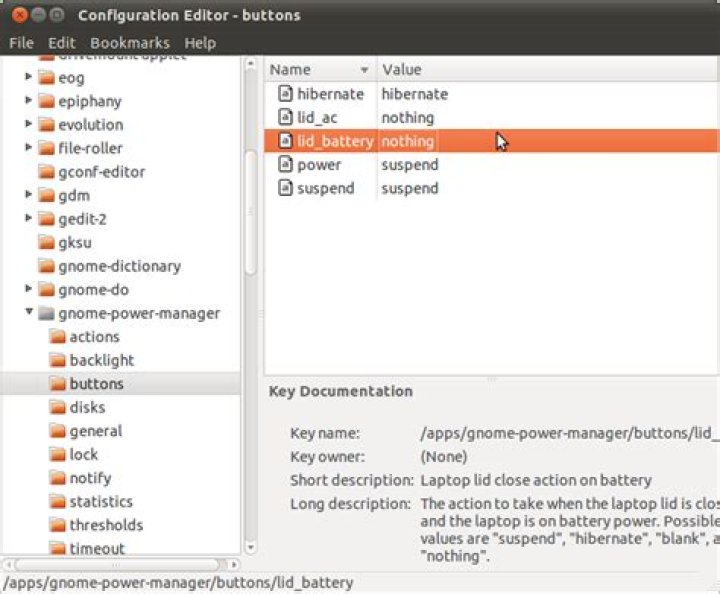
gconf-editor - apps > gnome-power-manager > buttons
- Set
lid_acandlid_batterytonothing
OR
1.When on AC Power, do nothing when laptop lid is closed: gconftool-2 -t string -s /apps/gnome-power-manager/buttons/lid_ac nothing
2.When on Battery Power, do nothing when laptop lid is closed: gconftool-2 -t string -s /apps/gnome-power-manager/buttons/lid_battery nothing
Blank screen when laptop lid is closed (preferable when no external monitor is connected):
- System > Preferences > Power Management
- On AC Power (On Battery Power) > Actions
- When laptop lid is closed: Blank screen
OR
1.When on AC Power, blank screen when laptop lid is closed: gconftool-2 -t string -s /apps/gnome-power-manager/buttons/lid_ac blank
2.When on Battery Power, blank screen when laptop lid is closed: gconftool-2 -t string -s /apps/gnome-power-manager/buttons/lid_battery blank
Ubuntu 15.10 - Ubuntu 20.04
TL;DR: Add IgnoreLid=true to /etc/UPower/UPower.conf
Open a terminal and run:
sudoedit /etc/UPower/UPower.confChange
IgnoreLidtoIgnoreLid=trueSave and exit the editor.
Restart the UPower service with:
service upower restart
For 11.10 - 12.04:
You can select "Do Nothing" in the power settings. Open the dash (super key), search for "power" and then select the correct option in the dropdown. Note that closing the lid will actually turn off the screen though plus any external monitors:
If you move the mouse then any connected monitors will power back up with the laptop closed. This will then become the primary monitor.
This might either have been removed at some point, or it requires some hardware support which is not available in all systems: Since 16.04, I don't have 'when the lid is closed' options in power settings as there have been reports that it was not visible on Ubuntu 21.04.
611.04 and previous versions
Copying 1st given answer from:
In a terminal (Applications-->Accessories-->Terminal), type: gconf-editor
Navigate to apps-->gnome-power-manager-->buttons and set lid_ac and/or lid_battery to "nothing" (without the quotes).
I have 14.04.1 LTS, Trusty Tahr.
What doesn't worked for me:
Open the /etc/systemd/logind.conf file in a text editor as root, for example,
sudo -H gedit /etc/systemd/logind.confAdd a line
HandleLidSwitch=ignore(make sure it's not commented out!),Restart the systemd daemon with this command:
sudo restart systemd-logindEdit gConf
When on AC Power, do nothing when laptop lid is closed:
gconftool-2 -t string -s /apps/gnome-power-manager/buttons/lid_ac nothingWhen on Battery Power, do nothing when laptop lid is closed:
gconftool-2 -t string -s /apps/gnome-power-manager/buttons/lid_battery nothing
What worked for me:
Setting IgnoreLid=true in /etc/UPower/UPower.conf
Let us create a script that works on all versions
#!/bin/bash
# PLEASE FEEL FREE TO CHANGE THE SCRIPT
# Ubuntu 16.04 [PLEASE COMPLETE]
sed -i '/HandleLidSwitch/d' /etc/systemd/logind.conf >/dev/null 1&>2
echo 'HandleLidSwitch=ignore' >> /etc/systemd/logind.conf >/dev/null 1&>2
# Ubuntu 14.04 [PLEASE COMPLETE]
sed -i '/IgnoreLid/d' /etc/UPower/UPower.conf >/dev/null 1&>2
echo 'IgnoreLid=true'>> /etc/UPower/UPower.conf
# [PLEASE COMPLETE ]
# gconftool-2 -t string -s /apps/gnome-power-manager/buttons/lid_ac [PLEASE COMPLETE ]
# gconftool-2 -t string -s /apps/gnome-power-manager/buttons/lid_battery nothing [PLEASE COMPLETE ]
# RESTART SERVICES
service upower restart
service systemd-logind restartThere is a bug with some laptops and monitors that makes Ubuntu not honor the "do nothing" setting when the laptop's lid is closed. I have not been able to find a complete solution, but maybe there is something to do with this link where they hint at this file : /etc/default/acpi-support and using:
gconftool-2 -t string /apps/gnome-power-manager/buttons/lid_ac -s "blank"
gconftool-2 -t string /apps/gnome-power-manager/buttons/lid_battery -s "blank"
For Saucy:
Edit /etc/systemd/logind.conf and set HandleLidSwitch=lock to lock the screen on lid close (but not suspend), or HandleLidSwitch=ignore to not even lock the screen.
This is due to an upstream GNOME change. See GNOME bug 687277 for the rationale for this change.
2You can easily disable the lid lock feature by clicking the System Settings icon in the Launcher/Task bar, and then clicking on Brightness & Lock.
From there, you flip the Lock switch to the off position, and un-check the "Require my password when wakening from suspend." check-box.
Another thing you have to watch for if you also plan on setting up hibernation (suspend-to-disk) is whether or not your system has a large enough swap partition to actually go into hibernation. Hibernation is different than suspend, but sometimes people like to set up the hibernation feature while they are configuring suspend.
You can also go over your Power settings, so they don't suspend the system when the lid is close. You can do this in System Setting -> Power.
11.04 and previous versions
you can also go to system->preferences->power management
near bottom of the window you will find a dropdown where you can select what your system does when lid is closed
012.04
In System Settings, open Brightness & Lock. On that page, uncheck the checkbox at the bottom that says, "Require my password when waking from suspend."
1I like to suspend my laptop sometimes, and other times I like to keep it going for long times like a server (do nothing when I close the lid). I use Debian, and here's my simple script to do either one on the fly without rebooting:
# run this in the as the same user (or root) that xwindow is using
# test for required parameter --> empty not allowed
if [ "$1" == "" ]; then echo "Please provide true or false" echo "True means keep running when lid is closed" echo "False means suspend the computer when lid is closed" exit;
fi
# "running true" means keep running even if the lid is closed
if [ "$1" = "true" ]; then gsettings set org.gnome.settings-daemon.plugins.power lid-close-ac-action nothing gsettings set org.gnome.settings-daemon.plugins.power lid-close-battery-action nothing
fi
# "running false" means suspend the computer!
if [ "$1" = "false" ]; then gsettings set org.gnome.settings-daemon.plugins.power lid-close-ac-action suspend gsettings set org.gnome.settings-daemon.plugins.power lid-close-battery-action suspend
fi
# if "echo" is supplied as a param, just show the current settings
if [ "$1" = "echo" ]; then gsettings get org.gnome.settings-daemon.plugins.power lid-close-ac-action gsettings get org.gnome.settings-daemon.plugins.power lid-close-battery-action
fi
# restart gnome to make changes effective
/etc/init.d/gdm3 restartFor 12.10:
Edit /etc/UPower/UPower.conf and add IgnoreLid=true to the bottom.
This method no longer works in Saucy. I am unsure about 13.04.
2

