How can I reinstall Windows 10's calculator app?
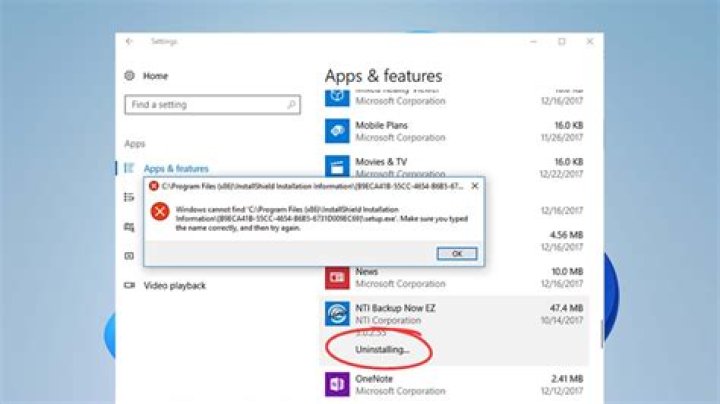
I uninstalled the Calculator app like this in PowerShell:
Get-AppxPackage *windowscalculator* | Remove-AppxPackage
How do I reinstall it?
48 Answers
This one worked for me, just combined the commands from the other answers found here. Note: you have to use the -Allusers option with the Get-AppxPackage command since it is not installed anymore under your current user account:
Get-AppxPackage -allusers *windowscalculator* | Foreach {Add-AppxPackage -DisableDevelopmentMode -Register “$($_.InstallLocation)\AppXManifest.xml”}Here is the MS Store link to the Windows Calculator.
Note: This will only work if you have the Windows Store app installed.
1To reinstall an individual app use PowerShell and run it in admin mode. Screenshots:
Next get the full name of all apps, e.g. Windows Calculator paste this snippet in PowerShell and hit enter:
get-appxpackage -allusers | Select Name, PackageFullName
For single full name of the desired app name, e.g. Windows Calculator paste this snippet in PowerShell and hit enter:
Get-AppxPackage *windowscalculator*
Now copy the full name that looks like this: Microsoft.WindowsCalculator_10.1601.49020.0_x64__8wekyb3d8bbwe
Finally the we are going to install that app again with this snippet:
Add-AppxPackage -register "C:\Program Files\WindowsApps\Microsoft.WindowsAlarms_10.1603.12020.0_
x64__8wekyb3d8bbwe\appxmanifest.xml" -DisableDevelopmentMode
Re-installed app is available without restart of the PC!
N.b: To remove individual apps use this code:Get-AppxPackage *alarms* | Remove-AppxPackage
A list of all apps when removing is (Here)
1Try Get-AppxPackage *windowscalculator* | Add-AppxPackage
or the following to install all default apps:Get-AppxPackage -AllUsers| Foreach {Add-AppxPackage -DisableDevelopmentMode -Register “$($_.InstallLocation)\AppXManifest.xml”}
I had the same issue where I installed a stripped version of Windows 10 (for performance gains and lower latency) and the Calculator was missing.
I managed to find the old Windows 7 calculator and install it easily. Just google "old calculator for windows 10" and the first link should be from winaero website.
Add-AppxPackage -register "C:\Program Files\WindowsApps\Microsoft.WindowsCalculator_10.1906.53.0_x64__8wekyb3d8bbwe\AppxManifest.xml" -DisableDevelopmentMode
1Just install it from the Windows Store if you have that installed. Windows Calculator |
Just as an FYI, the other answers above work, BUT if you're on an AD domain and a VPN, going to Microsoft Store may not work because you could be blocked. Try the command line if the store blocks you.
1

