How can I enable Ctrl+Alt+Backspace?
Ctrl+Alt+← can usually be set to restart X, however I can't find the option to allow this (it is disabled by default).
I have looked in System->Preferences->Keyboard and System->Preferences->Keyboard Shortcuts but I can't find an option to enable it.
Where can I change this setting?
29 Answers
This was tested on 13.10+, type the following on the terminal:
sudo dpkg-reconfigure keyboard-configurationYou will see the keyboard configuration. Press ENTER 5 times to skip all keyboard related options except for the Kill X part. When you get to the Kill X option which looks like this:
Select YES and press enter. Wait a bit while everything configures and after that you should have the ability to CTRL+ALT+BCKSPC right on the current session. After saving any work you have pending, try it yourself.
Perfect to solve any visual issues or annoying apps.
Thank you @david-c it also looks like this works:
Sudo Edit the /etc/default/keyboard file and add the line XKBPTIONS="terminate:ctrl_alt_bksp" to it, so it looks something like this:
For Unity (13.04 to 17.04):
You want: System->Preferences->Keyboard
Then click the Layouts tab, the Options button, and expand Key sequence to kill the X server, before finally selecting the checkbox.
To enable it via the command line install dontzap
sudo apt-get install dontzapAnd in a terminal
sudo dontzap --enableTo disable the shortcut:
sudo dontzap --disableYou can also use dconf-editor. This option will make the setting persistent across sessions.
sudo apt-get install dconf-editorAfter starting the dconf-editor, navigate to org >> gnome >> desktop >> input-sources
Add the options that you need in xkb-options. The option strings are surrounded by single quotes and separated by commas. Be careful not to delete the brackets on the ends.
To enable ctrl+alt+backspace to kill the X-session, add 'terminate:ctrl_alt_bksp'
You can use this method to enter most of the traditional xkb options that are no longer available in System Settings >> Text Entry. The exceptions are the settings for switching the keyboard layouts, which currently do not work because of a bug.
For a list of the options and the syntax, use man 7 xkeyboard-config in a terminal.
To run the commands equivalent to using dconf-editor from a terminal, you use
gsettings set org.gnome.desktop.input-sources xkb-options "['terminate:ctrl_alt_bksp']"Note the single quotes around the value, the square brackets around that, the double quotes around the whole thing. In other words, just like in dconf-editor.
Note that this will delete your other settings in xkb-options, if you have any.
You can get the existing settings with
gsettings get org.gnome.desktop.input-sources xkb-optionsIf you don't change these values very often, it might be simplest to combine existing settings with the new one by hand and the run gsettings set.
It can also be done all at once on the command line. I've put it in a short script here to make it easier to read.
#!/bin/bash
options=$(echo $(gsettings get org.gnome.desktop.input-sources xkb-options)|sed 's/]//g')", 'terminate:ctrl_alt_bksp']"
gsettings set org.gnome.desktop.input-sources xkb-options "$options"
The 2nd line gets the current values and concatenates the terminate... option. The sed command strips the right square bracket from the current values.
Note that while the argument string to the gsettings get command in the terminal needs double quotes around the value
"['val', 'val2']"the argument string when run in a script should not have the double quotes.
['val', 'val2']For 13.10 and newer:
If you are looking for a solution which is independent of Gnome/KDE/Fluxbox or any Desktop Environment or Window Manager, try the following X Window System command. I need this because my Unity desktop is not loading (but X works fine), therefore there is no logout button.
From
Using the command line
You can type the following command to enable Zapping immediately.
setxkbmap -option terminate:ctrl_alt_bkspIf you're happy with the new behaviour you can add that command to your
~/.xinitrcin order to make the change permanent.
Also, according to the Ubuntu 10.04 LTS (Lucid Lynx), this has replaced the old DontZap feature from older versions of the X Window System.
In addition, the Ctrl+Alt+Backspace option is now configured as an X keymap (XKB) option, replacing the X server "DontZap" option and allowing per-user configuration of this setting.
This is explained further in the Xorg X11R7.5 Release Notes which, among other details, say:
2Users who wish to have this functionality available by default may
enable it via the XKB configuration option “terminate:ctrl_alt_bksp”.
It was changed to Alt+Prt Scr+k.
I can't remember exactly when it was but it was supposed to stop accidental usage.
The idea being those who know they need it will be able to find the new key combination easily enough.
And I think someone at the time suggested it would be easier to remember as it is alternative screen kill. I am not sure that is the case.
The functionality is still there but under a different key combination.
4(This is for Gnome Ubuntu, but I suppose it is the same for Unity --- please someone confirm this).
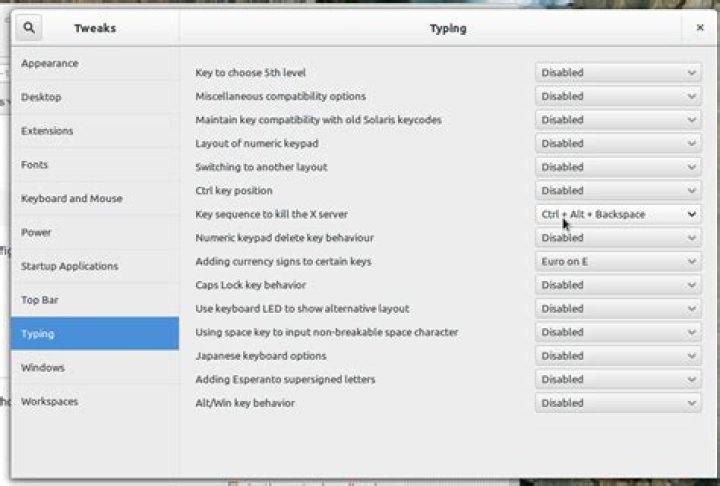
You should install gnome-tweak-tool (if not installed already) and run it. You will find the option you are looking for under "Typing":
If you feel more confortable with dconf-editor (or you do not want to install gnome-tweak-tool), you can open dconf-editor, navigate to org.gnome.desktop.input-sources, and then add the word "terminate:ctrl_alt_bksp" to the xkb-options property.
Note that the other properties in the list will be probably different for your keyboard.
1You can still get back Ctrl+ Alt+Backspace shortcut to restart X by opening a terminal and copy paste the following:
sudo dpkg-reconfigure keyboard-configurationFor Ubuntu 20.04 with Gnome 3 desktop, with the Gnome Tweaks app:
- Open Gnome Tweaks
- Navigate to Keyboard & Mouse tab
- Find and click the button: Additional layout options
- In the list popping up, locate and expand the item labelled Key sequence to kill the X server
- Check the checkbox for the desired key combination
- probably it's gonna be Ctrl+Alt++Backspace
This didn't appear to change anything at all and didn't activate the key combination.
In Kubuntu (KDE, plasma-framework version 5.23 on Kubuntu 16.04 Xenial) I found the option under K > System Settings > Input Devices > Keyboard > Advanced. Open the menu item "key sequence to kill X server" and check the only option "Ctrl + Alt + Backspace", apply.
Using strace I can see that this adds a line to /home/$USER/.config/kxkbrc which reads: Options=terminate:ctrl_alt_bksp.
The setxkbmap rule did work though and places a line reading terminate:ctrl_alt_bksp = +terminate(ctrl_alt_bksp) in the /usr/share/X11/xkb/rules/evdev file.


