How can I disable the Windows Credential Manager?
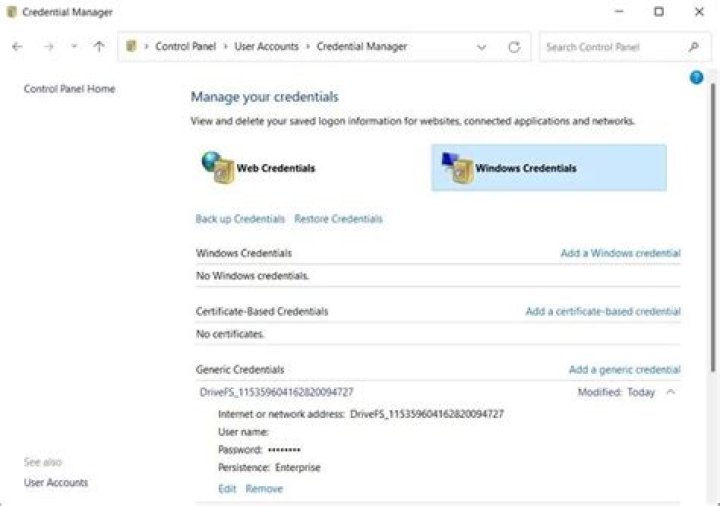
The Credential Manager seems to be more trouble than it's worth. How can I disable it?
24 Answers
It turns out that the Credential Manager that was causing the problems was part of the "HP ProtectTools Security Manager Suite". Once I uninstalled that, along with all the other HP cruft that was pre-installed on this OEM box, the login problems disappeared.
0You could possibly find the answer to the problem which produced this question...
How to disable the Windows Credential Manager,
'Run as' Admin:
Menu -> Accessories -> Administrator Tools -> Services (or Component Services then Services),
-> Services( Local )
-> highlight Credential Manager -> Right-Click on, select properties, -> General tab,
-> 'Startup type' in drop-down tab, ->select disabled.
Click 'Apply' then OK.
Backup by Exporting,
Services can be viewed in extended or standard - change view at the bottom.
Hope this helps.
To Start Credential Manager write this on command prompt window:
net start VaultSvc
Note: You can’t start a service if Startup type is on Disabled.
To Stop Credential Manager:
net stop VaultSvc
To change Startup type:
Automatic: REG add "HKLM\SYSTEM\CurrentControlSet\services\VaultSvc" /v Start /t REG_DWORD /d 2 /f
Manual: REG add "HKLM\SYSTEM\CurrentControlSet\services\VaultSvc" /v Start /t REG_DWORD /d 3 /f
Disabled: REG add "HKLM\SYSTEM\CurrentControlSet\services\VaultSvc" /v Start /t REG_DWORD /d 4 /f
Automatic (Delayed Start): REG add "HKLM\SYSTEM\CurrentControlSet\services\VaultSvc" /v Start /t REG_DWORD /d 2 /f
Note: When you change to Automatic (Delayed Start) a new key DelayedAutostart is created with value 1. REG add "HKLM\SYSTEM\CurrentControlSet\services\VaultSvc" /v DelayedAutostart /t REG_DWORD /d 1 /f
When you change to Automatic from Automatic (Delayed Start), DelayedAutostart change value to 0. REG add "HKLM\SYSTEM\CurrentControlSet\services\VaultSvc" /v DelayedAutostart /t REG_DWORD /d 0 /f
Open an administrator Command Prompt and type:
sc stop VaultSvcThen you can even delete the service:
sc delete VaultSvc

