Extract original PNG image from PowerPoint 2019 in full resolution?
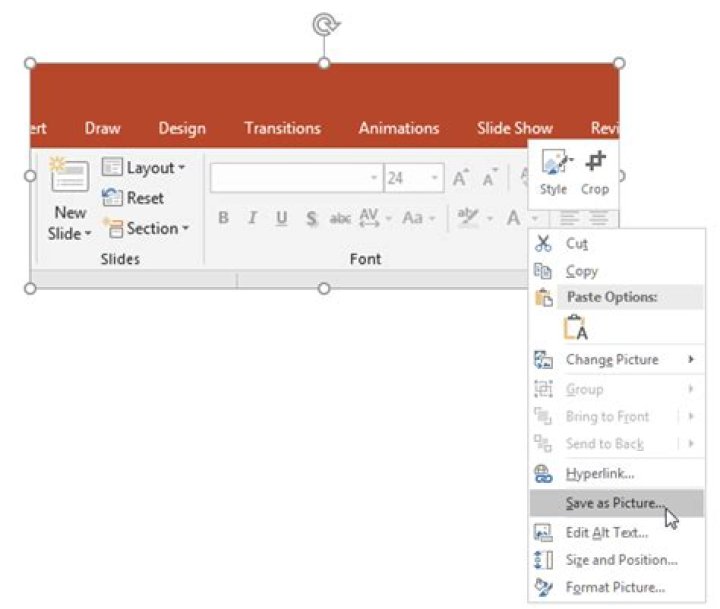
In Powerpoint 2019, I am trying to obtain an embedded image in original resoultion. I noticed that, if I click "save as image", the resulting image will have an extremely low resolution, far below the resolution of the image file added to the slide.
For example, I added an 1180x760 PNG into a slide. When I later wanted to retrieve it for use outside powerpoint, it had only a resolution of 542x355.
I know that PPTX files are ZIP files, and I have checked, that the original PNG file is included. Unzipping* the Powerpoint file I found the image under
(ExtractionDirectory)\ppt\media\image11.pngBut unzipping the PPTX-file and looking through all the images is bothersome, since they have no semantic names; Saving a single slide as a new presentation and then looking through the unzipped contents of that file may be slightly faster, but not by much.
Is there any better option to get the original file, directly from the GUI?
Bonus points, if it is possible to restore the original file name.
A reencoded full-resolution image may also be obtained, by exporting the slide to PDF with the "High Fidelity" image compression option, and subsequently extracting images with pdfimages, but possible optimizations (e.g. hand-optimized compression) would be lost in the process.
* Unzipping can be done with Windows board tools by creating a copy of the PPTX file, and changing the file extension from .pptx to .zip.
1 Answer
To save an image in full-resolution (the same as the original inserted file):
Right click the image and select Save as Picture...
Click the arrow next to Save and select Save Original Picture