Excel Mac - create graphs with two columns with values for x- and y-axis
In my Excel-file, I have four columns with information that I want to graph:Sample data
I want to graph this information as follows: the values of t, time, should be the x-axis and the values for A, B and C are the corresponding y-values. I have Excel for Mac, but I can't get this to work. I already searched a lot on the internet, but to no avail. I also need a way to plot e.g. two columns, say that the column with B represents the x-values and the column with A the y-values.
All the points should be connected with each other, like done on the below image.
So how do I create graphs, where I have two (or more) columns for the x- and the y-axis?
Thanks a lot in advance!
2 Answers
the values of t, time, should be the x-axis and the values for A, B and C are the corresponding y-values
The Scatter with Lines could meet your needs. Select the data of Time and columns with A, B and C > Insert Scatter, such as the Scatter with Straight Lines.
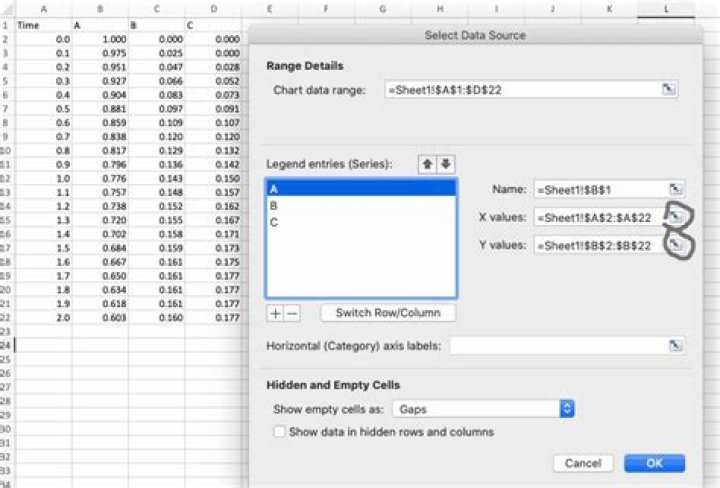
When you need to change the data range for X-axis values and Y-axis values, please right click the chart > Select Data > Select the series that you need to modify, then choose
For your first problem (to plot multiple 'y' values), do the following:
- Select all the data that you've arranged like this:
- After that, go to
Insert>Scatterand choose a graph type:
- You will have the result on your screen. See this:
For your second problem (to plot 'B' as X and 'A' as Y):
Without selecting any data, go to
insert>scatterand choose a graph type. This will bring a blank graph canvas on your screen.Right click on the blank canvas and choose
Select Data:
On the next screen that appears, click
Add.On the "Edit Series" menu that pops up, enter a series name. I have entered A-B here.
In Series X values, put
=Sheet1!$C$2:$C$11where$C$2is the first numeric cell of the data column B (which you want as X axis) and$C$11last in my case. You have to adjust these values in your case. For example, ifC20is your last numeric cell in data column B andC2first, change the given formula to:=Sheet1!$C$2:$C$20whereSheet1refers to the sheet name.Similarly, put in the values of Series Y, as shown below:
- Press 'OK' and then again 'OK' on the menu that appear. That's it. You'll have your desired graph right there.
I hope this helps. Do tell how it does :)
3

