dpkg: error: dpkg status database is locked by another process
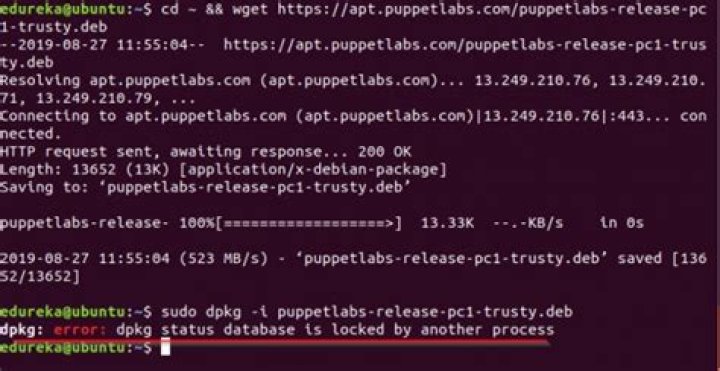
I just wondered if somebody could tell me what this means:
E: dpkg was interrupted, you must manually run 'sudo dpkg --configure -a' to correct the problem.
reidsr@ubuntu:~$ sudo dpkg --configure -a
dpkg: error: dpkg status database is locked by another process
reidsr@ubuntu:~$
How do I run sudo dpkg --configure -a manually?
10 Answers
First run:
lsof /var/lib/dpkg/lockThen make sure that process isn't running:
ps cax | grep PIDIf it is running:
kill PID
#wait
kill -9 PID
Make sure process is done:
ps cax | grep PIDThen remove the lock file:
sudo rm /var/lib/dpkg/lockLet dpkg fix itself:
sudo dpkg --configure -aYou should be fine afterwards :)
9In our case there was no running process (PID) so I hard-stopped and rebooted the VPS.
Next, there are several lock files that might need to be removed:
sudo rm /var/lib/dpkg/lock
sudo rm /var/lib/dpkg/lock-frontend
sudo rm /var/cache/apt/archives/lock
Then you can fix dpkg as suggested:
sudo apt update
sudo dpkg --configure -aOne could also try:
sudo apt-get install -fTo fix any broken packages:
0Fix; attempt to correct a system with broken dependencies in place. This option, when used with install/remove, can omit any packages to permit APT to deduce a likely solution. If packages are specified, these have to completely correct the problem. The option is sometimes necessary when running APT for the first time; APT itself does not allow broken package dependencies to exist on a system. It is possible that a system's dependency structure can be so corrupt as to require manual intervention (which usually means using
dselect(1)ordpkg --removeto eliminate some of the offending packages). Use of this option together with -m may produce an error in some situations. Configuration Item: APT::Get::Fix-Broken.
You can not run several packages applications/commands/tools at the same time. Sometimes, it means that synaptic, apt-get or the package update tool are running in the backgroung. Just close other package tools, or wait for them to be finished. And dpkg will run.
One approach is just to restart the PC. This worked for me.
Following should help:
sudo rm /var/lib/dpkg/lock
sudo dpkg --configure -aThere are some good answers here, but just wanted to add a non-lsof method of finding the dpkg lock user
Step 1: Find out who is locking dpkg:
Option #1: Using lsof (not always installed on the machine)
lsof /var/lib/dpkg/lock
Option #2: Using bash
for pid in $(ls /proc | egrep [0-9]+); do sudo ls -l /proc/$pid/fd 2>/dev/null | grep /var/lib/dpkg/lock && echo $pid; done
Step 2: Decide what you want to do with the current dpkg user
If there is no such process, there is nothing to decide, just skip to the next step.
Otherwise, you have to decide if you want to kill the process or let it finish gracefully.
If you decide to kill it, just use kill <pid>. If the process still won't die, you can consider killing it using kill -9 <pid>, but it might create certain inconsistencies and I advise against it unless you know what you are doing.
Step 3: Remove the lock file
sudo rm /var/lib/dpkg/lock
Step 4: Fix dpkg internal state
sudo dpkg --configure -a
No answer of this thread has solved it for me. I had removed the lock files, and there was no PID running, yet, whenever I executed sudo dpkg --configure -a, the shell was stuck at one of the previously locked "apt" tasks that I had force-closed by closing the terminal in the end.
I also killed the apt processes using sudo killall apt apt-get. The stuck apt task in my case was "Setting up docker-ce (5:20.10.1~3-0~ubuntu-bionic)".
Solution in my case:
- Boot in recovery mode.
- In the recovery menu, choose "root" in order to "Drop to root shell prompt".
- Press Enter.
- Type 'sudo dpkg --configure -a'.
- Go on with what you were about to do, it should work now, and / or just reboot.
Please see screenshots and detailed explanation (e.g. how to get the recovery mode at start) at the answer of docker ps stuck … docker install also just hangs.
This can happen if the upgrade process was interrupted (like you're connection was lost). You can try using screen as root (sudo su) to get back into the session.
screen -rOne thing that's not mentioned - you could have unattended/automatic upgrades enabled. If so, unattended-upgr is likely holding the lock on dpkg. In that case, forcibly removing the lock file is NOT a good idea!
You can check if it's running using the following:
ps -A | grep unattended-upgrYou can also see if that's the process holding the lock using Step 1 of Daniel Trugman's answer. Option #2 (using bash) was the only one that showed me the PID that had the file locked, and pointed me to unattended-upgr.
AFAIK, your only two options are to patiently wait for the updates to finish, or temporarily disable unattended/automatic updates, install the needed package, and turn it back on.
1

