Deactivate Caps Lock in 14.04
I really don't need Caps Lock (who does?) and would rather have it as a Shift key as I sometimes hit it by mistake especially on the small netbook keyboard.
Since I don't read while I type this might mean I have to retype half a page. I only find solutions for Ubuntu 12.04 but they don't work for 14.04 (Somehow the "typing" dialog looks totally different, not as user friendly).
I've tried anyway and clicked on + to make a custom shortcut. It asked me for a name (I put Name: Caps Lock) and for a command (command: disable, and I also tried command: Shift), but that did nothing. It shows on right side under custom shortcut, but I still have Caps Lock.
I am new at Linux so please, if you have an answer don't just say: Use mxpt.de or so, but please tell me how to get to the dialog box or to a command prompt and what I need to do. (Somebody had a solution with Gnome Tweak or so, but I cannot find that program in Ubuntu 14.04).
110 Answers
Opening a terminal and typing in:
xmodmap -e "keycode 66 = Shift_L NoSymbol Shift_L" followed by enter/return should remap the Caps Lock button the Left Shift.
However, this will need to be executed on each boot. You can do the following to automatically run this every time the system boots.
Search "Startup Applications" in the dash and open it.
Click add. For the name put "Caps Lock to Shift" and under "command" put
xmodmap -e "keycode 66 = Shift_L NoSymbol Shift_L".Press save and restart. Enjoy!
If you would rather disable Caps Lock, you can execute the following (in terminal):
setxkbmap -option caps:noneOnce again, this will reset once you restart, so add a startup entry (like above) to execute this on boot.
4You can remap Caps Lock is by using Gnome Tweak Tool.
You can install it via the Ubuntu Software Center if you wish or by the command line; it does not come installed on Ubuntu 14.04 by default.
Open a terminal by holding CTRL, ALT and T at once or by search it in the dash.
Type in
sudo apt-get install gnome-tweak-tool. This tellsapt-getto installgnome-tweak-tool. You need to havesudoas one needs to have root permissions to install software.Open Tweak Tool
Select "Typing" from the left bar.
Select "Caps Lock act as shift" where it says "Caps Lock key behaviour".
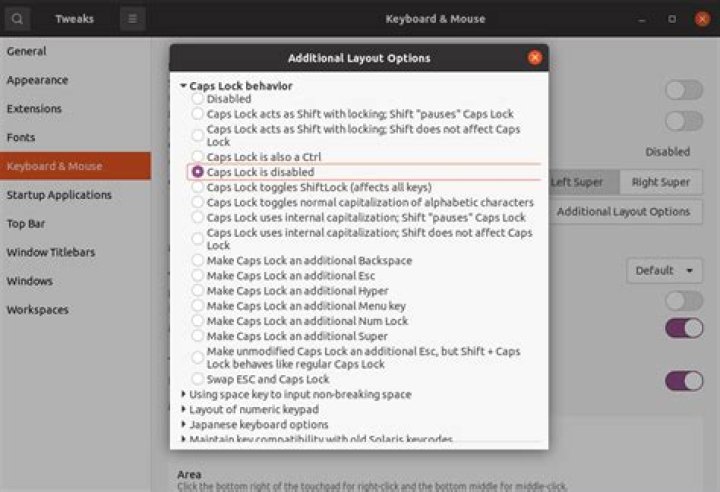
Update for version 3.32.0-1
The option is now under:
Keyboard & Mouse > Additional Layout Options > Caps Lock behaviour
Newer method
More modern distros (ubuntu 20.04) now come installed with gsettings instead of dconf:
gsettings set org.gnome.desktop.input-sources xkb-options "['caps:none']"Older way
As for ubuntu 17.04 you can set a dconf setting:
dconf write /org/gnome/desktop/input-sources/xkb-options "['caps:none']"No need to re-login.
3To permantly disable CAPS-lock:
xkbset nullify lockTo re-enable it
xkbset nullify -lock.To just toogle CAPS-lock:
sudo apt-get install xdotool
xdotool key Caps_Lockfor Ubuntu 17.10
sudo apt install -y gnome-tweak-tool- Open Gnome Tweaks
- Select Keyboard & Mouse from the left panel
- Click on Additional Layout Options from the right side
- Click the arrow next to Caps Lock key behavior. Set Caps Lock key to what you want.
There are many tools out there which can get the sort of thing you want. Probably the best one for you would be Gnome Tweak Tool. To install it, run this command in Terminal:
sudo apt-get install gnome-tweak-toolOnce it is installed:
Open tweak-tool and click on the typing section in the left column.
You should now see the line Caps Lock key behaviour on the left.
Choose
Disablefrom the drop-down list. And then it should disable the Caps Lock key.
This one is to disable the caps lock permanently without restart:
setxkbmap -layout us -option caps:ctrl_modifier gsettings set
org.gnome.desktop.input-sources xkb-options "['caps:ctrl_modifier']"
The other answers show 2 excellent ways to disable the key with a command (xmodmap -e "keycode 66 = Shift_L NoSymbol Shift_L" and setxkbmap -option caps:none) but no great way to run this at startup.
From with some minor edits:
Place your script into a system-wide directory such as /usr/local/bin with an appropriate shebang
[Removed script example]
Make it executable e.g. sudo chmod +x /usr/local/bin/disable-caps.sh
Create a custom config file in /etc/lightdm/lightdm.conf.d. Use a name such as 99-disable-caps.conf. (The 99 prefix means that it will be run after the standard setup scripts provided in /usr/share/lightdm/lightdm.conf.d.)
Add the location of your script as a display-setup-script in the
[Seat:*]section:[Seat:*] display-setup-script = /usr/local/bin/disable-caps.shThe display-setup-script should be run after the X server is started, but before any greeter is run - see LightDM: Adding system hooks.
[Seat:*] is relatively new (Ubuntu 15.10 and later); use [SeatDefaults] on older systems.
I tested the following on 16.04
1. Install DCONF
sudo apt-get install dconf-tools2. Disabling classic caps behaviour
The following disabled the caps key
setxkbmap -option "caps:none"3. Configure option to re-enable it (optional)
If you still want to be able to re-enabled caps but only by pressing both shift keys (left and right) at once try the following
setxkbmap -option "shift:both_capslock"Here's my script that I use to enable/disable caps lock
$ cat ~/bin/caps
#!/bin/bash
let state=1
if [ $# -eq 0 ]; then xmodmap -pke | grep 'keycode\s\+66 = Caps_Lock' > /dev/null [ $? -eq 1 ] && let state=0
else [ "$1" == "on" -o "$1" == "1" ] && let state=0
fi
if [ $state -eq 1 ]; then echo "Caps lock off" xmodmap -e "keycode 66 = VoidSymbol NoSymbol VoidSymbol"
else echo "Caps lock on" xmodmap -e "keycode 66 = Caps_Lock NoSymbol Caps_Lock"
fi

