Create Certificate Signing Request (CSR) with Subject Alternative Name (SAN) on Windows without third party tools
I need to create a CSR on Windows with Subject Alternative Names. Normally I use the built in feature from IIS but it does not give the alternative to use Subject Alternative Name (SAN).
I know that I can use DigiCert Certificate Utility for this but it is not an option to install.
Using MMC -> Request new certificate has no enrollment policy.
1 Answer
Found the way to do it:
MMC -> Certificates(Local Computer) -> Right click on the Personal folder -> All Tasks -> Advanced Operations -> Create Custom Request...
I choose Proceed without enrollment policy and clicked next. Choose (No Template) Legacy key for compatibility and more options and use PKCS #10. Click on next and click on Properties.
Enter a Friendly name and Description and hit apply. Don't forget to hit apply after changes has been done on each tab.
Other tab examples for https certificate. Remember to add a valid Host + Domain Name for Common Name (CN), should look like or yoursite.com. Subject Alternative Names should be added under Alternative name and Type DNS.
If you need a new CSR similar to an existing certificate look at that certificate details and the Fields Subject and Subject Alternative Name
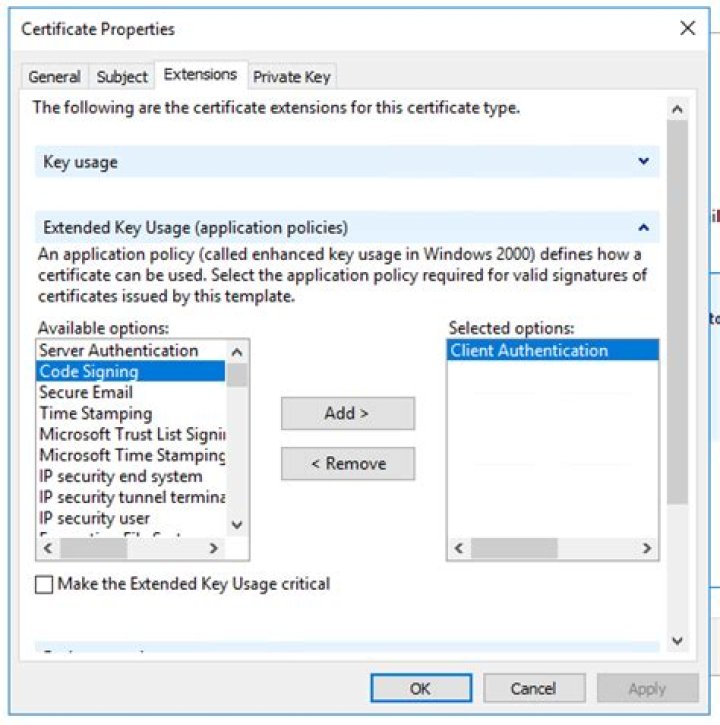
Under the tab Extensions choose Client AuthenticationServer Authentication for Extended Key Usage (application policies).
Under the tab Private Key choose Key size 4096 and Make private key exportable.
If you have the Key type flap choose Exchange otherwise check that Select Hash Algorithm is set to sha256.
If you choose (No Template) CNG key it will look like this:
Save with OK and then save the file as Base64.


