Connected Bluetooth Headphones don't appear as Playback device in Windows 10
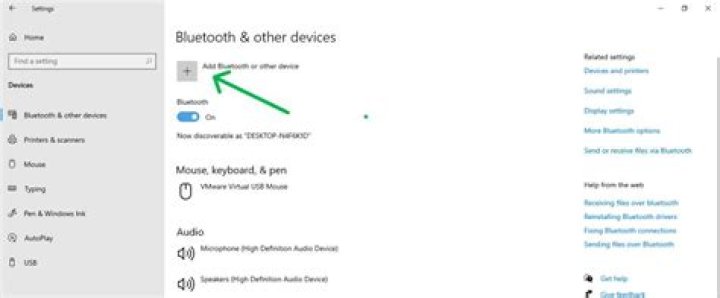
I've been struggling with this for a while. Updated all drivers I could, no luck. Headphones connect and pair successfully, appear in manager, show all services correctly, but don't appear as a playback device. Any help would be appreciated.
Here are the details:
Windows 10 build 17127
Headphones QC12 with AptX
Killer Wirelesss Bluetooth
Screenshots:
13 Answers
I encountered the same problem with Windows 10 and my Dell computer/LG Bluetooth speaker. I accidentally found a way to resolve the problem by referring to the answer from the previous contributor Dlight202.
Two simple steps:
In Start, search for "Devices and Printers", find your device (speaker)
Right-click to show properties, under Services, check "audio sink", click "apply" then the speaker works.
I'm not sure if it works for all speakers but it works for mine.
The usual procedure is :
- If wired, plug in the headphones. If Bluetooth, pair and ensure they are visible in Bluetooth Neighborhood.
- Right-click the speaker icon and click Playback devices
- Right-click the default speakers and select
Show disabled devicesandShow disconnected devices. - If your headphones now appear, right-click them and select Enable.
If your headphones are still unusable, then the problem is with your driver. It may be incapable of functioning as a playback device. Search for the right software, or contact the Support of the manufacturer. If nothing works, change headphones.
Feb 2020 Update: In Windows ver. 1909, the "Playback devices" option has been removed from the speaker icon. Now, you must:
- Right-click the speaker icon and click "Open Sound Settings"
- In the "Related Settings" section on the RHS, Open "Sound Control Panel". This is the original playback devices panel.
I just had this situation. BT device was connected but under playback none of the services related to bluetooth were available.
Resolving steps
-- restart all bluetooth services
---Switch off bluetooth switch on laptop ( or else disable / enable bluetooth ) hardware
and then it showed up under playback devices .
MS has a worst BT interface . Crappy. Is there a 3rd party BT manager out there?
I had the same issue as described above happen to me after a windows update. The solution was to disable the Absolute Volume feature in the registry. None of the other tricks described above did the job.
Please find the instructions here:
Scroll down to "Troubleshoot problems with Bluetooth accessories" click on "Audio"
Just in case Mircosoft takes the side down, here is the command for the command line:
reg add HKLM\SYSTEM\ControlSet001\Control\Bluetooth\Audio\AVRCP\CT /v DisableAbsoluteVolume /t REG_DWORD /d 1 /f" (disclaimer: modify your registry at your own risk)Have you tried uninstalling and re-installing your Bluetooth adapter?
If so then try the following steps:
- Remove QCY-QY12 from Bluetooth
- Hold the power button while charging until you see the LED flash three times.
- Unplug and power the headphones.
- Try pairing again.
I recently had a similar issue with my windows 10 laptop. My bluetooth headset would connect, but then would not appear as a playback device in my sound manager.
The bluetooth device used a Qualcomm Atheros driver. I tried uninstalling, using old drivers, the latest dell supported driver, third party atheros drivers, but nothing was working.
The headset would connect okay, but then afterwards during enumeration, it didn't seem to enumerate correctly. What I found is that when I looked in devices and printers and then at the properties for my headset, and hardware tab, there was no sound type device functions associated. There were however, 3 virtual bluetooth types, that when I right clicked to properties, were associated with the atheros driver.
When I uninstalled the bluetooth driver, the generic microsoft bluetooth driver would associate, but the same virtual bluetooth types were still showing up as device functions after enumerating, and they were still associated with the atheros driver. I had to remove the atheros drivers inf files from windows 10 driverstore by running the pnputil from command line.
First to search the listed drivers to find the ones related to bluetooth
pnputil -e > C:\Users\<username>\Desktop\driver_list.txtThen after searching the list, delete the ones with the appropriate oem number
pnputil.exe -d oem<NUMBER>.infAfter this, when using the generic windows bluetooth driver the device re-enumerated and then the correct hardware device functions became available.
good luck
I had a very similar issue with my bluetooth headphones and dell XPS 13 laptop. I tried just about everything that is frequently mentioned, and finally fixed it just now!!
What worked for me was to install an older Windows 8.1 bluetooth driver from the dell support site. Apologies if this is only applicable to dell laptops, but it may not be. Regardless other people may find this solution helpful.
This solution was originaly posted by 'cacahahacaca' on reddit:
My Dell Latitude (originally Win 8 upgraded to Win 10) would pair and connect with Bluetooth headphones and, after much tweaking with drivers and settings, would show the headphones in the playback devices list but never actually work. The built-in Bluetooth module was 3.0 and rather than buying a $25 replacement and disassembling most of the laptop to swap it out, I bought a $10 USB 4.0 adapter. I uninstalled the internal module, plugged in the new one, and both sets of my Bluetooth headphones connected and worked immediately.
I've solved with a mix of the above suggestions My pc is a Dell XPS15, win 10, triyng to setup a Peaq PPA20BT - downloaded Win 8.1 64bit bluetooth drivers from Dell, file name is 9530_Network_Driver_74FK3_WN64_6.30.223.259_A01.EXE link is
- restared bluetooth service
- paired BT device again (it asked ne for the PIN, never did before, good sign) and finally it appears in the playback devices list
Hope it helps
I've solved with a mix of the above suggestions My pc is a Dell XPS15, win 10, triyng to setup a Peaq PPA20BT - downloaded Win 8.1 64bit bluetooth drivers from Dell, file name is 9530_Network_Driver_74FK3_WN64_6.30.223.259_A01.EXE link is
- restared bluetooth service
- paired BT device again (it asked me for the PIN, never did before, good sign) and finally it appears in the playback devices list
Hope it helps
I've solved this with a mix of the above suggestions.
My PC is a Dell XPS15, Win 10, trying to setup a Peaq PPA20BT.
- Downloaded Win 8.1 64bit bluetooth drivers from Dell, file name is "9530_Network_Driver_74FK3_WN64_6.30.223.259_A01.EXE" and the link to DELL is.
- Restared bluetooth service
- Paired BT device again (it asked me for the PIN, never did before, good sign) and finally it appears in the playback devices list.
Hope it helps.
One thing that caused me issues with my Bluetooth headphones (Sony WH-1000XM3) and Windows 10 was that the headphones actually showed up as two different Bluetooth devices when pairing.
The first time I paired them I believe I clicked on the "LE" variant, and this wasn't registered as an audio device at all (and from that point on it would just pair with that link each time). So the solution was to unpair it, and then repeat the pairing process, but make sure that I select the correct one.
There are two solutions that I found
Solution one : try to install Bluetooth Suite Win 7 & from Atheros. It can be searched and downloaded online for win 7 and lower.
Solution two : buy a bluetooth 4.0 dongle and connect to your headset.
There is a reason for it but I am not a real tech. Anyways hope people like me not to get frustrated anymore.
1

