Completely disabling Chrome browsing history
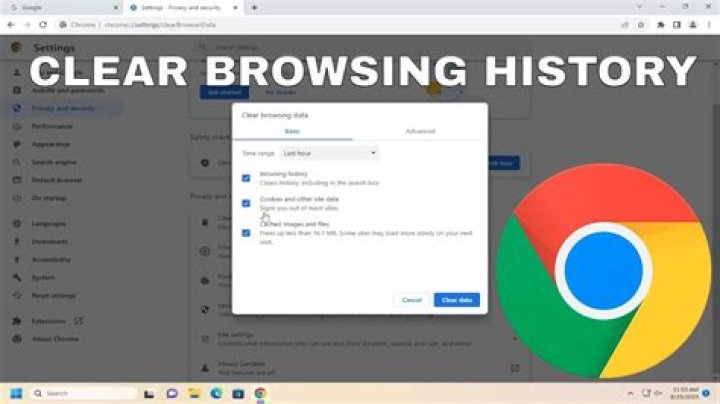
I disabled browsing history from My Activity and deleted all elements; I made Chrome's History file read only; my browsing history from Clear browsing data shows "None" and I disabled history sync. Despite this, history is still saved: if I do a search, then that same search shows in my history (with a clock icon) when I type in the address bar, also if I close Chrome.
If I do Clear browsing data history doesn't appear anymore, but since history was marked as "None" something seems wrong.
How can I completely disable Chrome's history? Using incognito sessions wouldn't work, since that doesn't store logins, either.
System: Chrome 78.0.3904.97, Windows 10 1903 18362.418.
43 Answers
Firstly, consider switching to Firefox, which allows you to turn off browsing history in its settings and has more concern for privacy overall.
Secondly, if you still prefer to use Chrome, you may want to configure your Chrome shortcuts to start the browser in incognito mode, because in this mode Chrome will not record your history. On Windows you can do the following.
Navigate to the location of the shortcut:
- Go to
%USERPROFILE%\Desktop
to find your desktop shortcut; - Go to
C:\ProgramData\Microsoft\Windows\Start Menu\Programs
to find the start menu shortcut; - Go to
%AppData%\Microsoft\Internet Explorer\Quick Launch\User Pinned\TaskBar
to find your taskbar shortcut; - Go to wherever you stash your browser shortcuts, if none of the above applies. :)
- Go to
Change the properties of the shortcut:
- Open the properties and go to the
Shortcuttab; - Edit the
Targetproperty: append-incognitoto the end of the value,
for example, in my case the value would look like as follows:"C:\Program Files (x86)\Google Chrome\Application\chrome.exe" -incognito; - Hit
OKto save and close the properties.
- Open the properties and go to the
Test the shortcut:
- Open Chrome by using your modified shortcut;
- The profile button in the top right of Chrome should say
Incognito.
Bonus: If you start Chrome with a text command rather than a shortcut,
just append -incognito to the end of the command to start it in incognito mode:
- For example,
Win + R;chrome -incognito;Enter.
Please note that this does NOT entirely prevent Chrome from working in normal mode, in which it does record your history, so be careful when you open new windows, for example:
- Use the
New incognito windowoption instead ofNew window; - Use the hotkey
Ctrl + Shift + Nto create a new incognito window,
rather thanCtrl + Nwhich would create a normal window.
Chrome, therefore Google keeps your history in their databases as well, you need to go to your google account. Find, "Manage your activity", then privacy, there you should see Web & App Activity and then you can disable it.
5The last openend link are saved in the user profile directory, Shortcuts file; by resetting it and making it read only, when I open Chrome all the previously opened links are gone.