Change the frame rate of an MP4 video with ffmpeg
I have a video in mp4 format with a frame rate of .33 (1 frame for 3 seconds). I want to increase the frame rate to 5 frames/sec. I have tried the below command but it does not do any thing:
ffmpeg -i <input.mp4> -r 5 <output.mp4>Any idea why ffmpeg is ignoring -r option?
6 Answers
I know this is an old question but none of the current answers are the recommended way anymore.
Lossless (video) remuxing
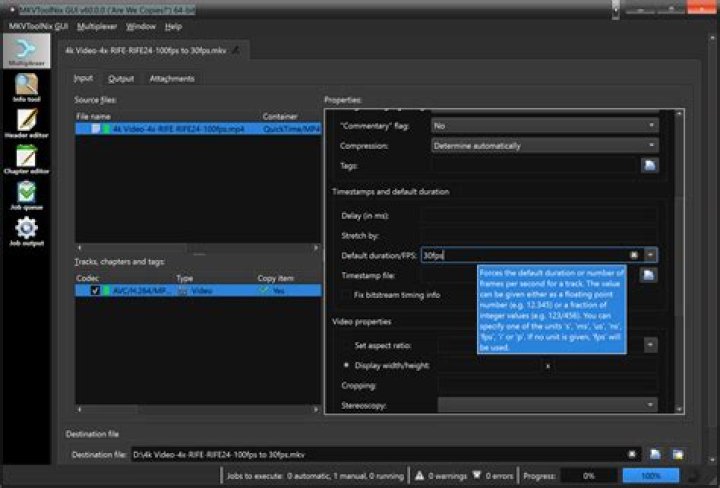
As noted in the comments there is a way to do this where the video does nothave to be re-encoded. It requires remuxing the file to a different containter format MKV and then remuxing it back into an MP4. Here is an example that changes a video to 12 frames/second:
mkvmerge --default-duration 0:12fps --fix-bitstream-timing-information 0 original-video.mp4 -o temp-video.mkv
ffmpeg -i temp-video.mkv -c:v copy slow-video.mp4
If the video contains audio you can also slow that down without changing the pitch, but it is not a lossless conversion. The example below assumes the source video was 24 frames/second so that audio needed to be slowed to half (0.5) speed using ffmpeg's atempo filter.
mkvmerge --default-duration 0:12fps --fix-bitstream-timing-information 0 original-video.mp4 -o temp-video.mkv
ffmpeg -i temp-video.mkv -c:v copy -c:a aac -filter:a "atempo=0.5" slow-video-with-audio.mp4
FFMPEG Wiki Guidance
This is the guidance from the ffmpeg wiki. Note that all of these options do require re-encoding the video.
Speeding up/slowing down video
You can change the speed of a video stream using the setpts video filter. Note that in the following examples, the audio stream is not changed, so it should ideally be disabled with -an.
To double the speed of the video, you can use:
ffmpeg -i input.mkv -filter:v "setpts=0.5*PTS" output.mkvThe filter works by changing the presentation timestamp (PTS) of each video frame. For example, if there are two succesive frames shown at timestamps 1 and 2, and you want to speed up the video, those timestamps need to become 0.5 and 1, respectively. Thus, we have to multiply them by 0.5.
Note that this method will drop frames to achieve the desired speed. You can avoid dropped frames by specifying a higher output frame rate than the input. For example, to go from an input of 4 FPS to one that is sped up to 4x that (16 FPS):
ffmpeg -i input.mkv -r 16 -filter:v "setpts=0.25*PTS" output.mkvTo slow down your video, you have to use a multiplier greater than 1:
ffmpeg -i input.mkv -filter:v "setpts=2.0*PTS" output.mkvSmooth
You can smooth out slow/fast video with the minterpolate video filter. This is also known as "motion interpolation" or "optical flow".
ffmpeg -i input.mkv -filter "minterpolate='mi_mode=mci:mc_mode=aobmc:vsbmc=1:fps=120'" output.mkvOther options include slowmoVideo and Butterflow. Speeding up/slowing down audio
You can speed up or slow down audio with the atempo audio filter. To double the speed of audio:
ffmpeg -i input.mkv -filter:a "atempo=2.0" -vn output.mkvThe atempo filter is limited to using values between 0.5 and 2.0 (so it can slow it down to no less than half the original speed, and speed up to no more than double the input). If you need to, you can get around this limitation by stringing multiple atempo filters together. The following with quadruple the audio speed:
ffmpeg -i input.mkv -filter:a "atempo=2.0,atempo=2.0" -vn output.mkvUsing a complex filtergraph, you can speed up video and audio at the same time:
ffmpeg -i input.mkv -filter_complex "[0:v]setpts=0.5*PTS[v];[0:a]atempo=2.0[a]" -map "[v]" -map "[a]" output.mkvIf the input file doesn't have a valid frame rate you might have to set it explicitly
ffmpeg -r 1 -i input.mp4 -r 24 output.mp4I could only get the changed framerate to take effect if the input file was classed as a "raw" file:
ffmpeg -r 5 -f h264 -i input.h264 -vcodec copy -an output.mkvWithout specifying -f h264 it would default to 25 fps and it could not be changed. Apparently this was because the stream lacked any framerate information at all and this is ffmpeg's default framerate.
Apparently when you use -r as an output option it duplicates or drops frames so the video plays at the same speed - in this case, not what you want! But changing the input framerate as above will cause the video to speed up or slow down, with no frames lost or duplicated.
Such a feature - of changing framerate - is called "conforming" and is often used to produce slow-motion or fast-forward like showing a plant's growth in minutes insted of days. ffmpeg do not allow overwriting/changing framerate without re-encoding. If it does so, duration will change and audio would be out of sync unless separately mended. But I'm afraid audio is not of interest in your case with framerate of .33
You want conforming because you just want to change framerate, but ffmpeg ignores -r silently if framerate is specified in the input file. Since your input file is in .mp4 format, its own framerate take precedence of when re-encode isn't needed. For this you need a different tool: mencoder.-r
Assuming your input file contains no sound - likely true for any video with .33 framerate - what you need is:
$ mencoder -fps 5 -o <output> -ovc copy -nosound <input.mp4>Notice that mencoder by default produce output in AVI format.
6The quickest way is to create a BAT-file in the directory with the following rows:
@ECHO OFF
for %%f in (*.mp4) do (
echo “fullname: %%f”
del temp.mkv
mkvmerge --default-duration 0:18fps --fix-bitstream-timing-information 0 %%f -o temp.mkv
del %%f
ffmpeg -i temp.mkv -c:v copy %%f
del temp.mkv
)
You need to have mkvmerge and ffmpeg in the same directory. It changes every mp4-file in seconds automatically with no loss of quality.
There is an incredibly simple way -- by using MKVToolNix.
The mp4 file is losslessly converted (in a fraction of a second) to an MKV container with the same codec, internally.


