Change default directory in terminal started with shortcut but not in visual studio code
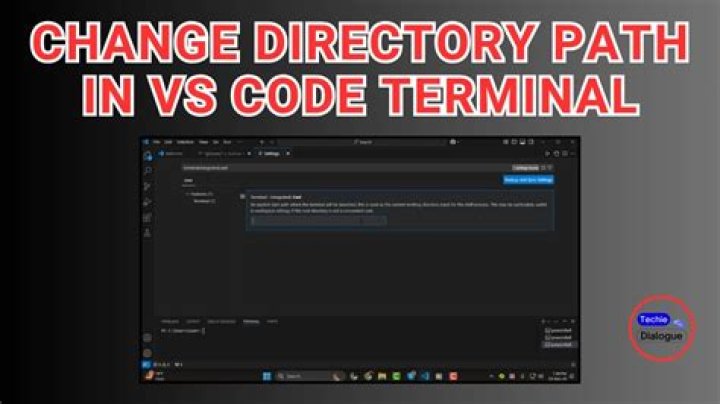
I'd like to start in a different directory when I open a terminal using ctrl + alt + T. I've already tried the method adding a line with cd command in .bashrc. It works well, but then when I open visual studio code in a project directory, the terminal there opens with the directory I wrote in .bashrc and not the project directory, which is also terrible for me, so I removed the line from .bashrc.
Does anyone have an idea to change the starting directory in terminal opened with ctrl + alt + T but not to change the terminal in visual studio code?
1 Answer
You can do so by creating your custom Ctrl + Alt + T shortcut key.
- Delete its default definition in "Settings" - "Keyboard", under the section "Launchers". (Click the entry, and when the "Set shortcut" dialog appears, hit Backspace to delete the shortcut assignment.
- Now create your own shortcut key under "Custom Shortcuts". Hit the + button at the bottom of the list, and in the "Add Custom Shortcut" dialog, provide a name and enter
gnome-terminal --working-directory=/your/custom/path. Assign the shortcut key Ctrl + Alt + T.