Cannot connect wireless internet with 12.10 on Dell Inspiron 1525
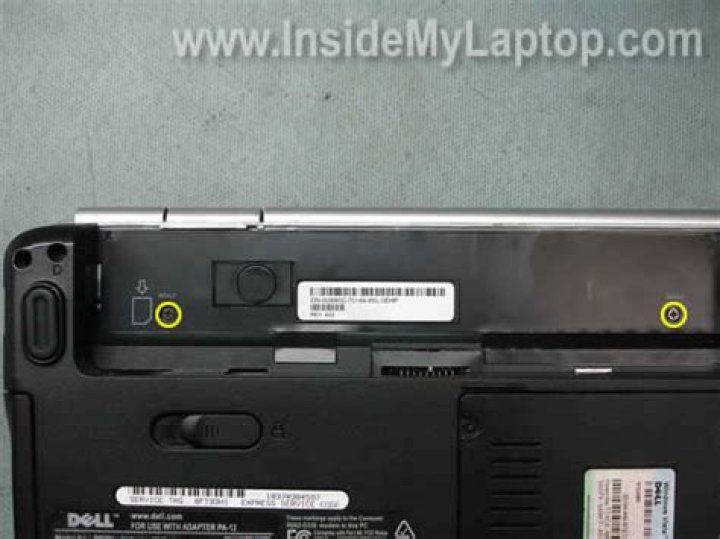
I have just installed Ubuntu 12.10 on my Dell Inspiron 1525 laptop. Wired network connection works a treat but there is no option to Enable Wireless Networking. Nor can I use Edit Connections to add a wireless network connection. After entering details, the Save button is disabled.
5 Answers
I used this laptop with ubuntu 10.04 two years ago.For using Wi-Fi, you must open the Software Sources and then open the tab "Additional Drivers", probably you can see the Wi-Fi driver for your Dell.Activate it and connect a wireless network. Or run the following command in terminal:
sudo apt-get install bcmwl-kernel-sourceAfter that restart computer.
Just for reference, tried the same thing as suggested by Hckr and Matthias (Although found it unnecessary to follow through with most of that) and got it done super quick.
If you find you get an error that bcmwl-kernel-source can't be found/installed try using
sudo apt-get updateI know that seems a little simple, but thought i'd save people the confusion. Run that then try Hckr's initial command again and restart after downloading.
Try running sudo modprobe brcmsmac. That, by itself, fixed this problem for me.
Since there is no option to even Edit the Wireless Connection, the problem is probably that there is no wireless device driver available to Ubuntu.
WHY (if that is the problem): Because the device driver for this wireless chip set is proprietary and are not automatically included in Ubuntu.
HOW TO FIX: Easiest way (if you don't want to open a term) for 12.10 is to:
- click on the system settings
- click on "Software Sources"
- click on "Additional Drivers"
There you should see a list of alternative drivers, mainly Broadcom 802.11 wireless driver source from bcmwl-kernel-source. It's listed as proprietary.
I had the same problem. Following steps helped me to solve the problem:
first I needed to install the sta driver for wireless network:
sudo apt-get install bcmwl-kernel-sourcenext install the b43 firmware with the installer:
sudo apt-get install firmware-b43-installernext step you need to add a line above the
exit 0in /etc/rc.localI used leafpad, but you can use actually any kind of editor like gedit:
gksu leafpad /etc/rc.localand add above
exit 0modprobe b43finally to get your wireless running already in this session you need to type into the terminal
sudo modprobe b43
I hope this will work for you.


