Can't record the screen with OBS Studio
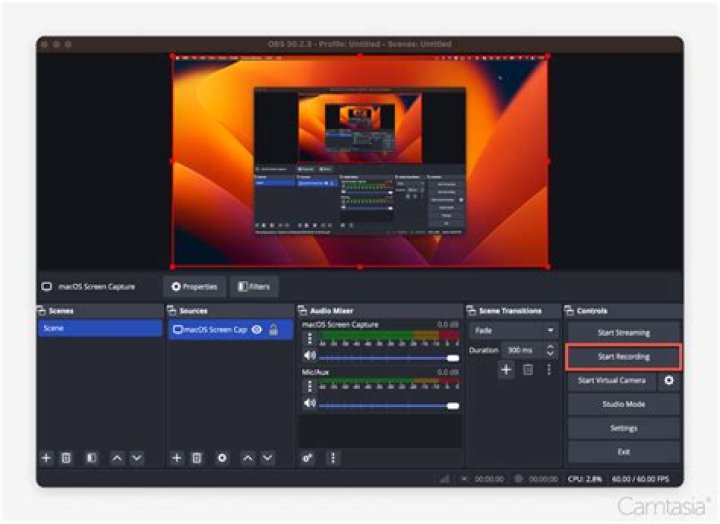
I have two screens and want to create a video of my work on Display 2.
So, added a source 'Display Capture'. What happens is in neither of the displays I'm able to see. Added anyways, clicked "Start Recording" but was getting black screen.
I tested also:
- different sources, more precisely Window Capture (which doesn't suit my needs and sometimes works, sometimes doesn't and I didn't yet figure out why) and Game Capture (which never worked).
- "Run as Administrator" and faced the same result.
- Remove the HDMI cable and plug back in
Here is my last log file -
Edit
Just gone through the following troubleshooting steps
Display Capture for NVIDIA-based Laptops
- Close OBS if it is currently open
- Go to the NVIDIA Control Panel by right clicking on your desktop, and then clicking on "NVIDIA Control Panel"
- Click on "Manage 3D Settings" if it is not already selected Under the Program Settings tab, click the "Add" button under where it says "Select a program to customize:"
- Navigate to the .exe path for OBS and add it to the list Default paths are: C:\Program Files\obs-studio\bin\64bit\obs64.exe and C:\Program Files (x86)\obs-studio\bin\32bit\obs32.exe)
- Make sure it is selected in the drop down list
- Then, under where it says "Select the preferred graphics processor for this program" open the drop down and select "Integrated graphics" from the list
- Save and apply, then open OBS and check Display Capture again
and still no success...
42 Answers
TLDR; Settings > Graphics > Browse OBS > Options > Power Saving
Go to your Windows Settings (gear icon in the start menu)
Search for Graphics Settings
Select Desktop or Classic App
Select Browse and find the
obs64.exepath - which is typically located here:C:\Program Files\obs-studio\bin\64bit\obs64.exeGo to the Options
Set to Power Savings
The workaround I've used was to install the TinyTake app and was able to record the screen in a fast and easy way.
1

