Can't choose "rows to repeat at the top" in Excel page setup menu
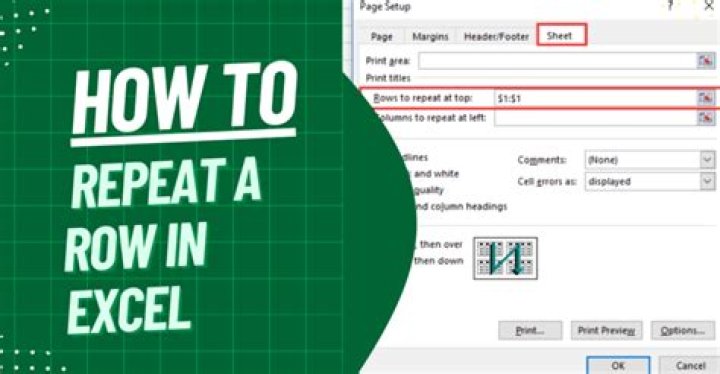
I purchased a Brother DCP-8150 printer, and now when I'm in an Excel 2007 file, my "rows to repeat at the top" option in page setup cannot be highlighted. Can you help?
27 Answers
in my case, i am using excel 2016. it is correct that one can not make the change directly at print preview>page setup. One has to go back to the working document, select "page layout", "sheet options", enlarge the options by clicking the small arrow at the bottom right corner. Under "rows to repeat at top", enter the row that one needs to repeat. in my case, i enter "$1:$1" to repeat the top row. hope that helps.
0Not being able to make this change from the print preview > page setup window has been a bug in Excel for several versions now. Intuitively, anything related to the way something is printed should be available, and primarily accessed through this route, since this is where you will notice if something is not the way you want it. However, as is, you must:
- Back out and go back to the main document editing view.
- Choose the page layout tab.
- Click on that tiny arrow in the corner of page setup to open the options by that route.
- Make changes there.
- Go back to print preview again to find out if it is the way you want it now.
If you need to produce several printouts to the preference of several bosses, multiple roundabouts are needed.
I had this same problem in Excel 2013. Turned out that I had the "File" tab open on a second Excel Document I had been working on. When I returned to the "Home" tab in the second Doc and went back to the first doc I wanted to print, the "Rows to repeat at top" option was available again but only via the Page Layout>Page Setup>Sheet tabs via the ribbon but NOT via the File>Print
This might help, I found it online in trying to resolve a similar problem:
NOTE If you have more than one worksheet selected, the Rows to repeat at top and Columns to repeat at left boxes are not available in the Page Setup dialog box. To cancel a selection of multiple worksheets, click any unselected worksheet. If no unselected sheet is visible, right-click the tab of a selected sheet, and then click Ungroup Sheets on the shortcut menu.
- Select Page Break Preview
- Press Right button, select Page Preview
- Select row(s) or type name of row(s) which you want to repeat at top. Press Enter to confirm. That's all!!
I found this out firsthand. I had 4 files open and another workbooks File tab was open. Once I closed it, I went back to the workbook I was working on, the selection was available and it worked fine.
1I've experienced similar troubles printing repeated rows and coloumns using Excel 2016. However, I have good news! I was fortunate to find a solution for me!
I uninstalled the Kutools add-in in which the free subscription had expired. You may want to see if your add-ins have expired and you can no longer use them without registering them, or other add-ins which may be disrupting printing repeated rows and columns.
I hope this helps.
1

