Automatically switch between monitor speakers and headphones
My laptop:
- runs Windows 10 (Version 20H2)
- has built-in speakers
- has jack port for headphones
- is usually connected to a monitor with speakers
I want the sound to come:
- from headphones, if they are connected
- from monitor, if it is connected and headphones are not
- from built-in speakers, if nothing else is connected
Is there a way to have the playback device switch automatically according to this?
Why this isn't trivial
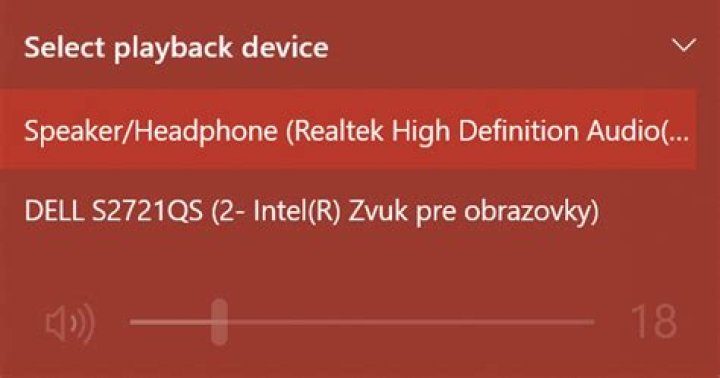
I think this can't be achieved with a simple default audio output configuration, because this is how the audio output devices look like:
My desired playback priority is 1. Headphones, 2. Monitor, 3. Built-in speaker. There is just one playback device for both the in-built speaker of the laptop and headphones (the second device is the monitor), so the priority can't be simply set to each of them individually.
3 Answers
The script below is not tested, and certainly not in your environment, but it might help.
I use here three tools:
- The very useful NirCmd by NirSoft.
- The Audio End Point Controllerthat can be downloaded from the Internet Archives fromhere (the tool is found in sub-folder "Release"). I'll call it AEPC for short.
- AutoHotkey.
First download the tools and unpack them into their folders.
Then run AEPC without parameters while all three devices are connected, and it will list their names. Note down the names, or at least an identifying sub-string inside the name. At this point I don't know whether it will list the "Speaker/Headphone" as one or two devices. If one device, then I assume that the Headphone takes precedence automatically and the script needs to be shortened. My script assumes three devices, but their names are only a guess until you run AEPC.
After installing AutoHotKey, put the text below in a .ahk file and double-click
it to test. You may stop the script by right-click on the green H icon in the
traybar and choosing Exit. To have it run on login, place it in the Startup group atC:\Users\USER-NAME\AppData\Roaming\Microsoft\Windows\Start Menu\Programs\Startup.
Check and replace below the strings used in thefindstr commands:
#Persistent ; prevents the script from exiting when it reaches 'return'
SetTimer, detectDevices, 1000 ; check every second
return
detectDevices: ; this is the timer routine
RunWait, %ComSpec% /c "C:\Temp\AudioEndPointController\Release\EndPointController.exe" | findstr Headphone
if (%ErrorLevel% = 0) { ; found headphone Run, "C:\Program Files\Nirsoft Package\NirSoft\x64\nircmd.exe" setdefaultsounddevice Headphones
} else { RunWait, %ComSpec% /c "C:\Temp\AudioEndPointController\Release\EndPointController.exe" | findstr Monitor-device if (%ErrorLevel% = 0) { ; found monitor device Run, "C:\Program Files\Nirsoft Package\NirSoft\x64\nircmd.exe" setdefaultsounddevice Monitor-name } else { ; only speaker is left Run, "C:\Program Files\Nirsoft Package\NirSoft\x64\nircmd.exe" setdefaultsounddevice Speaker }
}
Return ; end of timer routineThis is possible using the windows built in task scheduler. Every time something on the hardware level of your PC changes, it fires an event in the windows log. The task scheduler already listens for this log, so you shouldn't notice a difference in performance if you just look for another event. I found this forum entry which describes a similar problem, and ussnorway gave a very good explanation of how to solve it. Using this solution, you can create a task that fires when you plug in your monitor, and then starts a script that changes the audio device. Without deeper research I didn't find a way to do this with cmd or powershell, but I think that you can find something if you spend more time on it. The only thing I found is this post on StackOverFlow, where several solutions are presented, some using AutoHotKey, a very simple scripting language.
I hope this helps, maybe I find some more in the future, this is a problem I also came across, then I will update my answer.
Personally, my gut feel tells me that if you go down a software only route, you might be wrestling with this forever.
I think that software that automatically configures your output device is possible but I don't think there's any single piece of software available that will do what you want, and if you get a software solution working, I think you'll waste a lot of time getting it set up and maintaining it. I think you should try a hardware solution that is more reliable and easily configurable. Here's some options:
Nearly all screens have an input audio jack; and many also have an output audio jack. If your monitor has an output jack I recommend that you set your screen as the default audio, and plug your headphones into the screen's output audio. So when your headphones are plugged in, you get sound from headphones, unplug, and you will get sound from screen, and unplug the screen and you will get sound from laptop. (check screen settings, you may have options as to whether the screen speakers still play when an external device is plugged in)
Similar option, but get an audio extension lead, set your laptop as default, and plug the lead from your laptop to the screen input jack. When you want to use headphones, just unplug the extension from your laptop and plug in headphones.
Second option I'd recommend is to get an audio switch or an external sound card. It feels that sound quality might be important to you? If so, you may want to buy a good sound card at some point for increased sound quality. Do it now, and solve both problems at once. All you need is at least 2 outputs on it, with a manual switch to select which outputs you choose. Tons of options out there, or an audio switch is much cheaper but is just that - a piece of hardware with some manual switches and buttons on there.
Wish I could be more help, but I've done some testing on my PC and it's the same issue - trying to automatically change the output completely when you plug / unplug stuff is a pain. If it was myself, I know I'd go down the hardware route - might not be visually pretty but I think that it's the most reliable option you've got.