Android emulator not responding to physical keyboard on Xubuntu 16.04
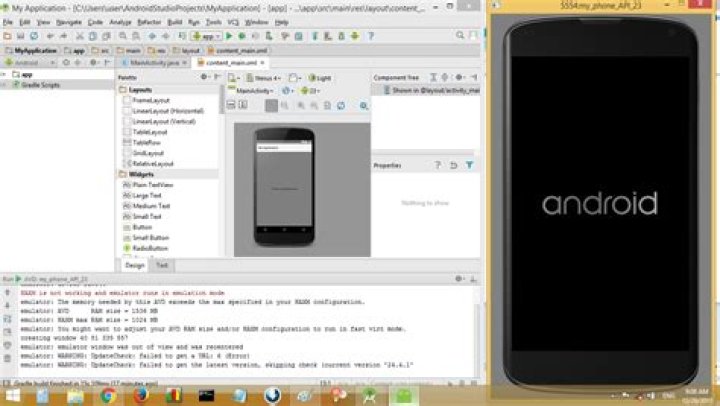
While Android emulator was responding exactly as it should on Xubuntu 14.04, this is not the case on 16.04. I have already posted a question/bug report on Android developers' site but have received no answer for two months.
Is anyone else facing the same problem? Has anyone solved it somehow?
Thank you!
p.s. Please do not suggest using other emulators. The question is very precise. I want to fix this Android emulator issue specifically.
9 Answers
It turns out this is a focus problem. Android emulator does not receive proper focus when clicked upon. I have found two solutions for this so far:
- Clicking on the three dots on the bar on the right and closing the settings window right after, gives correct focus to the emulator and the physical keyboard works properly until the user switches to some other app. Upon returning to the emulator, the same procedure has to be followed.
- In Xubuntu settings, allowing focus to follow mouse position also does the job.
May 28, 2018 UPDATE:
I was forced to recreate the android emulator from scratch since the previous one was not working properly. The newly created emulator does not receive focus no matter what I do, so this answer is no longer valid. It doesn't receive focus even if I use wmctrl -a.
If anyone else has found a way to force focus on Android Emulator, please share it.
3Try clicking with both (left and right) mouse buttons at once on the emulator window. It works for me (Linux Mint 18.3 XFCE)
2Try this, open your emulator then on the right click the 3 dotted button, then go to settings,Click Send keyboard shortcuts to (select virtual device) and its working. working to my unit using Xubuntu.
This is still happening with the latest Android Emulators. You can also click the three dots, and then go to Directional Pad. This will give you an emulated directional pad like a remote control, with left, right, up, and down, as well as play and pause buttons. This works but isn't an ideal solution but I couldn't get any of the other options to work.
1I've used this solution and it works on XFCE 4.12 @debian9:
- Open Settings > Window Manager Tweaks > Focus (tab).
- If "activate focus stealing prevention" checkbox is empty, fill the chekbox.
- Select "do nothing" option for "when a window raises itself" section.
Now when I click on AVD window, it gets focus correctly and I can use physical keyboard.
1Joining this celebration of XFCE keyboard quirks.
I can confirm that it is really XFCE issues (Linux Mint 18.3 XFCE4), just added Cinnamon environment and there emulator works perfectly.
Actually I found that after some chaotic magic actions emulator receives focus. For Emulator based on Nexus ONE (API 27 non-Google) this magic sequence is:
- place mouse cursor at the emulator header (speaker area) or inside display
- hold down left mouse button
- click right mouse button 4 (four) times
- release left mouse button
After that my emulator received focus. And this scenario must be repeated each time you'd like to put focus into emulator. Sometimes I need to repeat it to get emulator focused.
P.S.: Of course, corresponding checkbox in emulator settings should be set "on"
This worked for me (on Linux Mint 18 XFCE): Settings -> Window Manager -> Focus -> Select "Focus follows mouse" instead of "Click to focus".
Some issues with focus as pointed out by stormlord.
You can send a "shake" gesture from the ADB cli (from shell), this opens the developer menu.
adb shell input keyevent 82
I had this issue and what solved my problem was to set the host's keyboard input language to English (US). I do not know why the emulator does not work with other input languages.
EDIT: I did not find it as an window focus problem. Maybe it is an issue that needs to be reported, so that it is fixed.


