access webpage through ssh
I need to access the IEEE xplore, but I don't have right to download out of institute.
I can login into the server of institute via ssh,
so How can I access IEEE xplore through institute server via ssh?
I have searched solutions, some one answer:
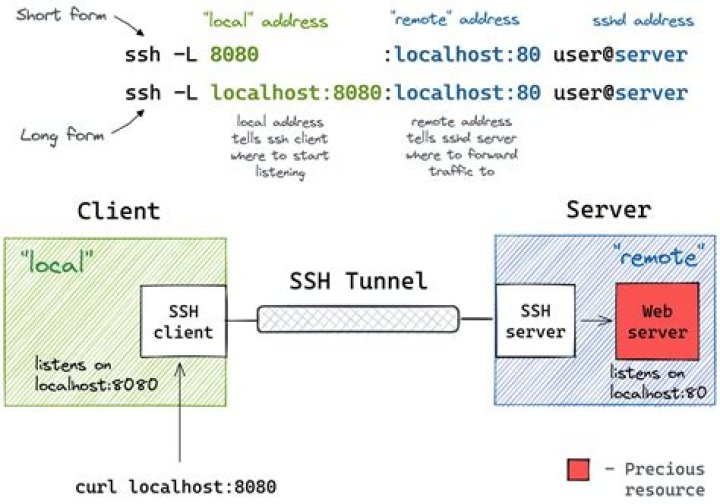
ssh -L 8080:localhost:80 user@remoteserverand then he says:
Now, point your local browser to localhost:8080. It should be forwarded to localhost:80 in the remote server.### But I still don't know how to configure my laptop,Im using chrome.
I appreciate your help very much!
12 Answers
First Method:
Launch an SSH tunnel
To initiate your SSH tunnel, simply open terminal and connect to your remote server via SSH with the following flags:
ssh -D 8080 -C -N Browse the Web with Your SSH Tunnel (Chrome)
Now, let’s start browsing the web using our new SSH tunnel.
- Open Google Chrome
- Select the wrench icon on the top right
- Select ‘Settings’
- Select ‘Show advanced settings…’
- Select ‘Change proxy settings…’
- Select ‘SOCKS Proxy’
- Enter ’127.0.0.1′
- Enter port ’8080′
- Save changes by selecting ‘OK’
Search Google for ‘my ip’ and take a look at what your IP address is now.
This will launch our SSH tunnel on port 8080 and route all traffic (securely) through the server at example.com.
Exiting the SSH Tunnel
To exit the SSH tunnel, simply disable the SOCKS proxy within your browser.
Second Method:
You can do it easily using Shellinabox
Ensure that you have checked Universe Repository
To install
$ sudo apt-get install openssl shellinaboxConfiguring Shellinabox
By default, shellinaboxd listens on TCP port 4200 on localhost.During installation a new self-signed SSL certificate automatically created under “/var/lib/shellinabox” to use HTTPS protocol.
$ sudo vi /etc/default/shellinabox
# specify the IP address of a destination SSH server
SHELLINABOX_ARGS="--o-beep -s /:SSH:172.16.25.125"
# if you want to restrict access to shellinaboxd from localhost only
SHELLINABOX_ARGS="--o-beep -s /:SSH:172.16.25.125 --localhost-only"
NB: replace the ip 172.16.25.125 with yours
Starting Shellinabox
Once you’ve done with the configuration, you can start the service
$ sudo service shellinaboxd startVerify Shellinabox
Now let’s verify whether Shellinabox is running on port 4200 using “netstat” command.
$ sudo netstat -nap | grep shellinabox
or
# netstat -nap | grep shellinabox
tcp 0 0 0.0.0.0:4200 0.0.0.0:* LISTEN 12274/shellinaboxd
Now open up your web browser, and navigate to 'https://"Your-IP-Adress:6175"'. You should be able to see a web-based SSH terminal. Login using your username and password and you should be presented with your shell prompt.
The example you provided is correct, but somewhat misleading. This should work:
ssh -L 8080:<remote-web-host-you-want-to-see>:80 remote-user@remote-ssh-serverFor example, consider a remote box running ssh that can access this web-page, which I want to see locally:
To create a tunnel on my local box that allows me to browse to that remote page, I run locally:
ssh -L 8080:192.168.1.2:80 user@remote-ssh-serverAnd, then in a web-browser, I visit:
If you need (or want) to omit the port specifier, you will need to open the tunnel as root, since 80 is a "privileged" port (<1024):
sudo ssh -L 80:<remote-web-host-you-want-to-see>:80 remote-user@remote-ssh-serverThen, you can just visit locally:
No other configuration is required.
Incidentally, this only works for a single host that you want to see locally. If you need to see more, you either need to open more tunnels on other ports or examine the other solutions that tunnel requests for all remote hosts through a proxy.
This is the 3rd usage of the -L switch from man ssh:
-L [bind_address:]port:host:hostport -L [bind_address:]port:remote_socket -L local_socket:host:hostport -L local_socket:remote_socket Specifies that connections to the given TCP port or Unix socket on the local (client) host are to be forwarded to the given host and port, or Unix socket, on the remote side. This works by allocating a socket to listen to either a TCP port on the local side, optionally bound to the specified bind_address, or to a Unix socket. Whenever a connection is made to the local port or socket, the connection is forwarded over the secure channel, and a connection is made to either host port hostport, or the Unix socket remote_socket, from the remote machine. Port forwardings can also be specified in the configuration file. Only the superuser can forward privileged ports. IPv6 addresses can be specified by enclosing the address in square brackets. By default, the local port is bound in accordance with the GatewayPorts setting. However, an explicit bind_address may be used to bind the connection to a specific address. The bind_address of “localhost” indicates that the listening port be bound for local use only, while an empty address or ‘*’ indicates that the port should be available from all interfaces.