6tb hard drive only showing 1.49tb of unallocated space
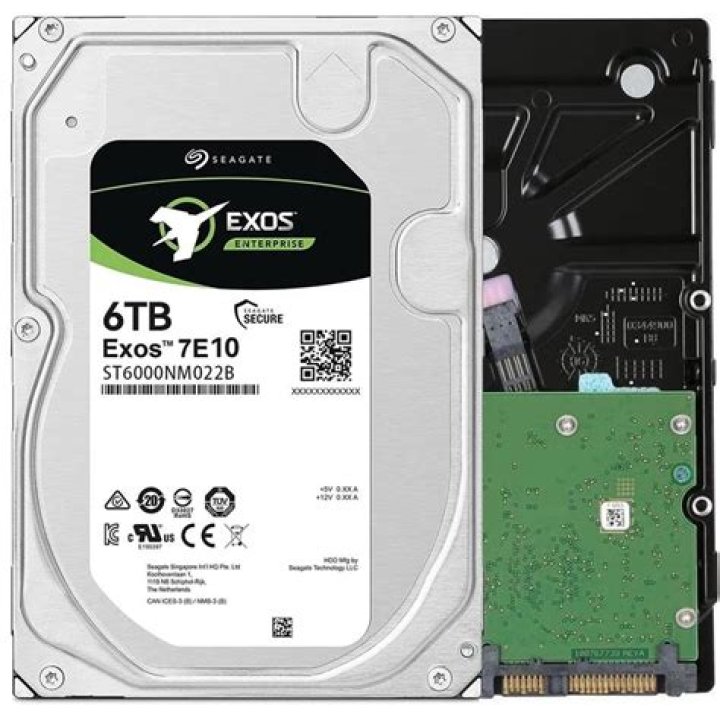
I'm not sure if this is a bios thing or what, It dosn't matter if the drive is using MBR or GPT. It always gives me only 1.49tb of unallocated space while in my system.
For some reason if I hook up the drive with an external sata to usb adapter the drive seems to work fine and gives me the full 6tb of space (more like 5.7tb but thats understandable). If I format the drive(to 6tb) using the usb to sata adapter and pop it in my machine windows recognizes the 6tb partition, however, after running chkdsk It reports 4.5tb of bad sectors and attempting to put more than 1.49tb of data on the disk doesn't seem to work, But if I run chkdsk with the drive in the sata to usb drive bay the drive comes up with all sectors good. I'm stumped as to what this could be, perhaps bios related? Windows 7 maybe?
EDIT: I should also mention I tried diskpart clean but to no avail.
EDIT2: looking at other questions they seem to suggest that re-formatting the drive in the physical machine should do the trick, however this does not seem to work as I have tried to do so multiple times, once with the drive pre formatted in the external enclosure and once with it in the machine, neither seem to work.
Edit 3: the suggested question above has nothing to do with the issue I am having, in fact if I load data on the drive with th sata to usb adaper then plug the drive into my pc I can read the data just fine
if you need the specs of my system I have a cpu-z export here
73 Answers
It's pretty obvious what's going on here: The internal port can't address drives beyond 4TB and the size is being wrapped. Either use it as an external or get a card with a SATA port on it.
Every so often you see this sort of thing with big drives on old controllers, either the controller sees only the size it understands, or it wraps the capacity over and sees only what's left over. It used to be a big deal at 127GB (There was a period where drives over this often shipped with controller cards because most motherboards couldn't work with them) but it's possible for every power of two.
The reason you don't see 2TB is the same as the reason you see 5.7TB rather than 6: The computer limits are at the true powers of two, drive capacity is normally measured assuming zeroes for all unspecified digits.
3After lots of research I found some good information on this forum post.
The issue was that drives above 2TB use advanced formatand intel RST(rapid storage technology) drivers below v9.6 do not support advanced format and drivers below v10.1 do not support drives larger than 2.2TB.
Copied from forum:
You must use F6 drivers with INTEL MSM / RST drivers that understand Advanced Format. Intel Rapid Storage Technology (RST) driver v9.6 and above. For Drives larger than 2TB REQUIRE INTEL RST 10.1 and above.
For disk drives beyond 2.2TB, the proper level of Intel RST F6 driver MUST be v10.1 or higher.
Since my Windows install was done offline I was still on the outdated drivers provided with Windows 7, To fix the issue I had to download and install the latest Intel Rapid Storage Technology (Intel RST) found here for Windows 7 and 8 as well as here for Windows 10. Something to note is the Windows 10 and 7 versions are different, you will get a fatal error if you try and install the Windows 10 version on Windows 7.
One last thing to mention is that after installing the Intel Rapid Storage Technology driver my system would hang after reaching the desktop. After some investigating it turned out to be that Nvidia Gforce experience had some sort of conflict as after booting with the drivers installed which caused my system to lock up due to excessive RAM and CPU usage, disabling those services in safe mode and re-booting seems to have done the trick.
I’m hoping a re-install of the GeForce Experience application will fix the issue.
2I think it's something with partition table.
Sometimes I had same thing on USBs after bad formatting.
Usually clear format through command line do job.
Open CMD as administrator
Run disk part
diskpartThen check disk to format
list disk
select disk 1 //or other number that your disk have
Then you have to clean it
cleanIt should do work. After that you should see your disk fully in Windows Disk Manager
If you want to continue formatting through CMD you have then
create partition primary
format fs=ntfs //or format fs=exfat - it can do a while
assign
Edit
After knowing situation for people from future - it can be issue with your mobo
4

